
Streaming your favorite movies and shows on Disney Plus should be a seamless experience, but sometimes users encounter the dreaded “black screen” issue. You open the app, select a movie, and instead of the vibrant visuals you expect, the screen remains pitch black while the audio may continue – or nothing happens at all. This problem can be frustrating, especially when you are looking forward to unwinding with Disney, Pixar, Marvel, or Star Wars content. Luckily, there are several solutions to resolve Disney Plus black screen problems, and even ways to record your favorite shows safely for offline viewing.
1. What is Disney Plus Black Screen?
A black screen on Disney Plus is when the app or website plays content but only shows a black or blank screen instead of video. The issue may occur while using Disney Plus on smart TVs, computers, mobile devices, or streaming devices like Roku or Fire Stick. Users often report:
- The screen turns black immediately after selecting a video.
- The app freezes on a black screen, sometimes with audio continuing in the background.
- Attempting to skip or fast-forward doesn’t change anything.
This problem is usually caused by software glitches, device compatibility issues, outdated apps, or network problems. In some cases, browser settings or corrupted cache can also result in a black screen. While it can be annoying, most black screen problems are fixable with a few troubleshooting steps.
2. How to Resolve Disney Plus Black Screen?
Here are the most effective ways to troubleshoot and fix the black screen issue on Disney Plus:
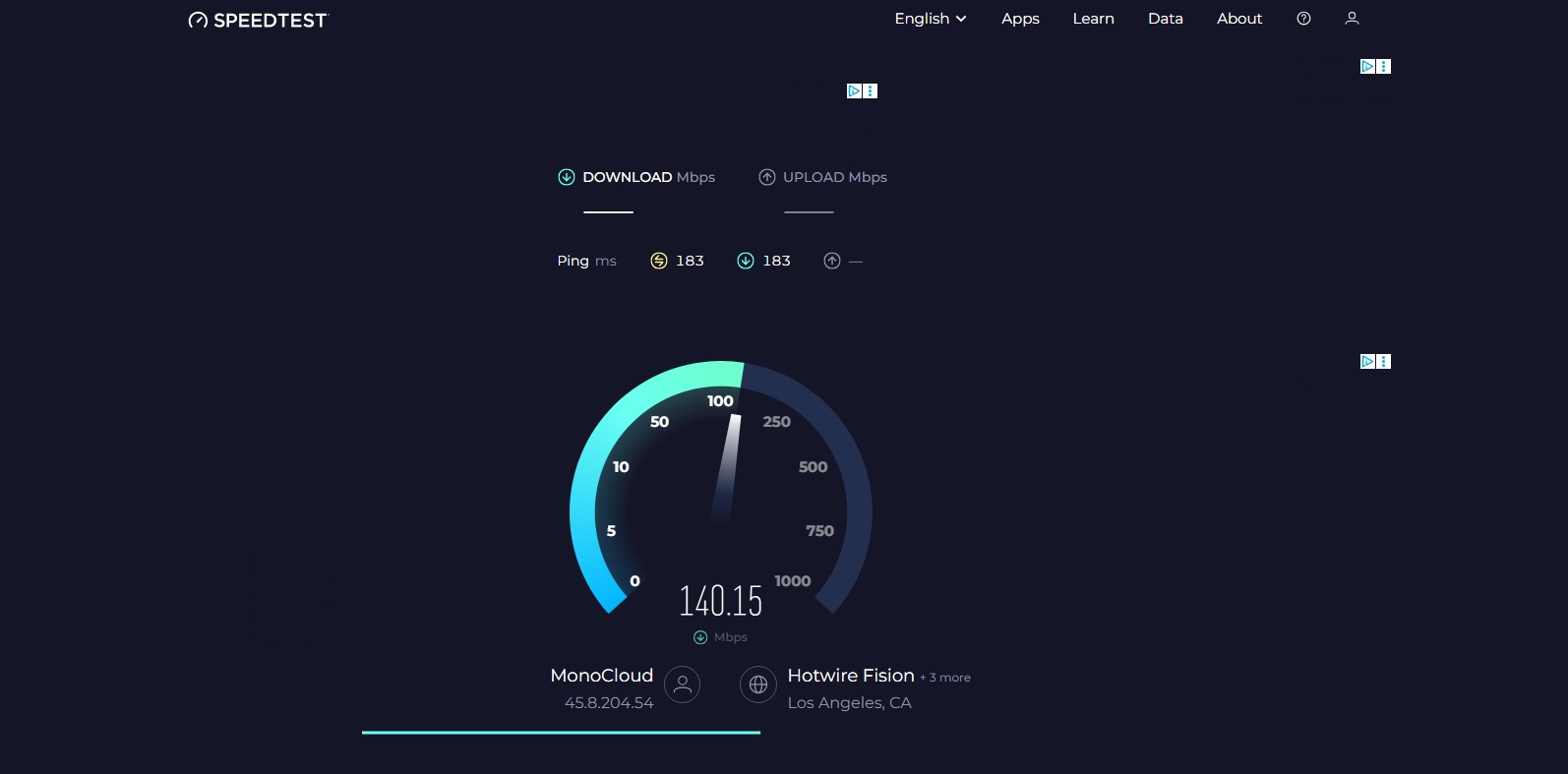
2.1 检查您的互联网连接
A slow or unstable internet connection can prevent Disney Plus from streaming video properly, leaving a black screen.
- Test your internet speed using tools like Speedtest.net.
- Make sure your download speed is at least 5 Mbps for HD and 25 Mbps for 4K UHD.
- Restart your modem or router if necessary.
2.2 Restart Your Device
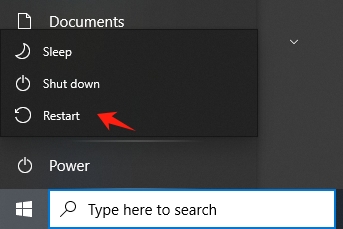
Sometimes, the simplest fix is a complete device restart. This clears temporary glitches or memory issues that might cause the black screen.
- Turn off your device completely.
- Wait 30 seconds and turn it back on.
- Relaunch Disney Plus and try playing the video again.
2.3 Update the Disney Plus App
Running an outdated version of Disney Plus can lead to compatibility issues with your device’s operating system.
- 在 smartphones and tablets 前往 App Store (iOS) or Google Play Store (Android) and check for updates.
- 在 smart TVs or streaming devices , check for updates in the device settings or app store.
- Updating the app can resolve bugs that cause black screens.

2.4 Clear Cache and Cookies (for Browser Users)
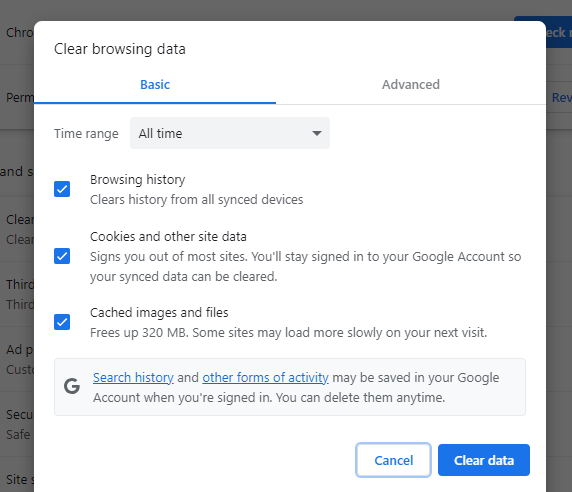
If you are watching Disney Plus on a computer browser, corrupted cache or cookies may prevent the video from loading correctly.
- For Chrome users, access Settings → Privacy and Security → Clear Browsing Data 。
- 查看 缓存的图像和文件 as well as Cookie 和其他网站数据 , then hit Clear Data 。
- Restart your browser and log back into Disney Plus.
2.5 Disable Hardware Acceleration (Browser Fix)
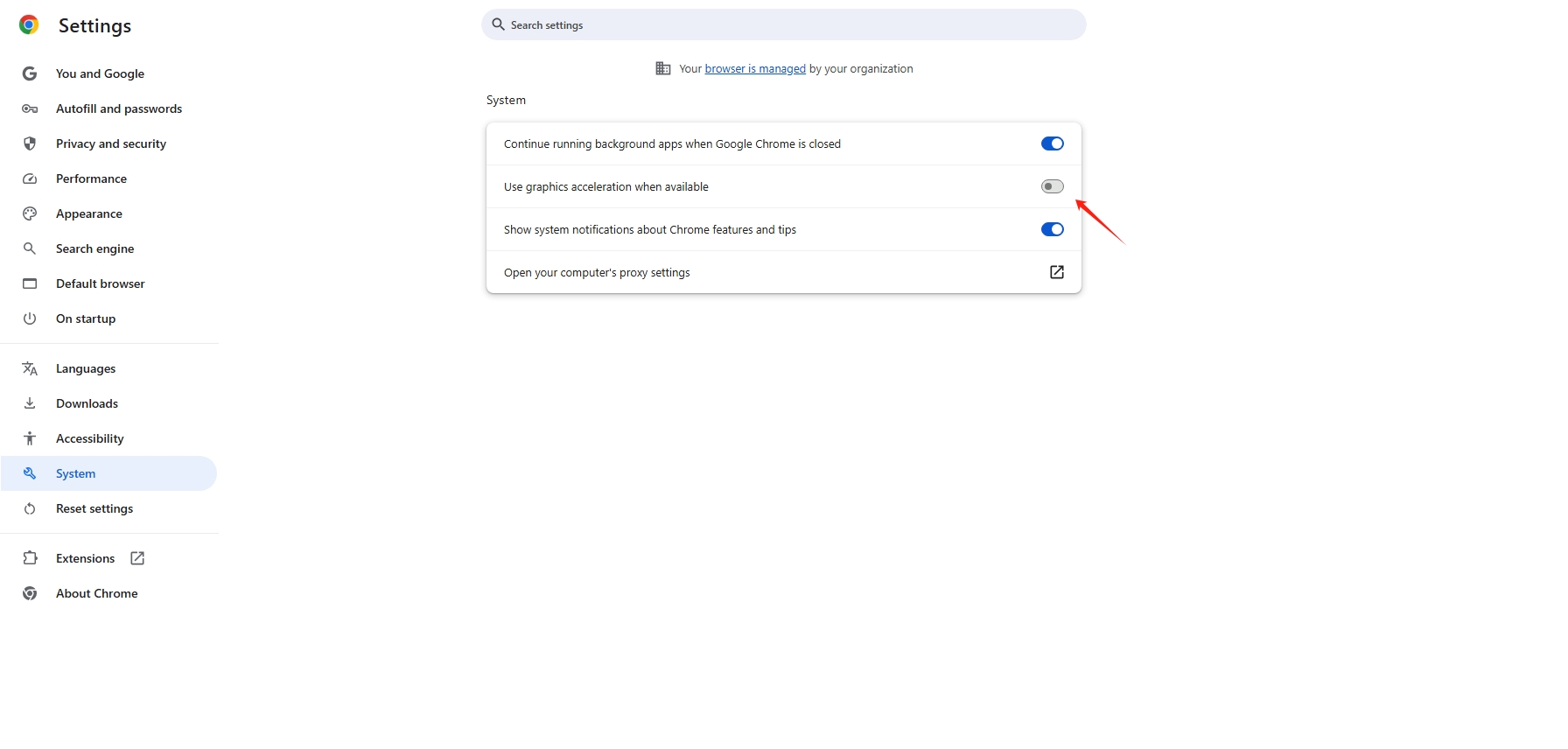
Some browsers use hardware acceleration for smoother video playback, but this can sometimes conflict with Disney Plus.
- For Chrome, access 设置 → 高级 → 系统 , then enable or disable 如有图形加速,请使用图形加速。 。
- Turn this setting off and restart the browser.
- Try playing the Disney Plus video again.
2.6 Reinstall Disney Plus
If the app itself is corrupted, reinstalling it often solves persistent black screen issues.
- Uninstall Disney Plus from your device.
- Restart your device.
- Download and reinstall Disney Plus from the official app store.
2.7 Check Device Compatibility
Disney Plus requires certain minimum device specifications. Older devices may experience black screens if they cannot support HD video streaming.
- Ensure your device firmware or operating system is updated.
- Consider using a newer device if the problem persists.
2.8 Adjust Display Settings
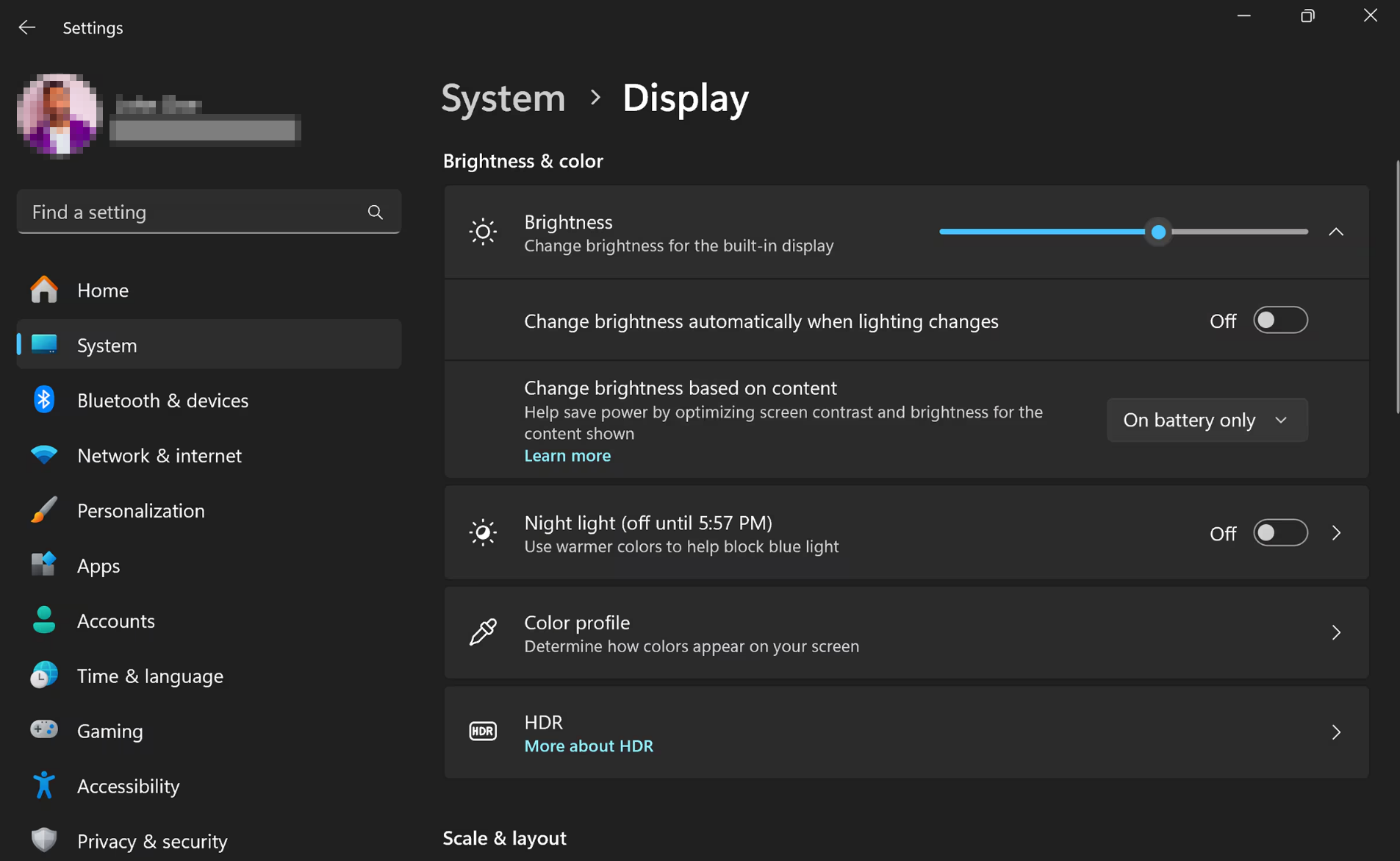
Sometimes display settings such as HDR, resolution, or overscan can cause video playback issues.
- On TVs or streaming devices, try lowering the resolution or turning off HDR.
- Disable overscan or picture enhancements to see if the black screen resolves.
3. Bonus: Record Disney Plus with Swyshare Recordit
While fixing black screen issues is important, sometimes you want to record your favorite Disney Plus shows for offline viewing, especially if you have intermittent connectivity. Swyshare Recordit is a reliable solution:
- High-Quality Recording: Capture Disney Plus content in HD without losing quality.
- 使用方便: Simple interface with start, stop, and save buttons—no technical skills needed.
- Flexible Formats: Save recordings in MP4, AVI, or GIF formats depending on your needs.
- Screen Selection: Record full-screen content or just a selected window.
- Editing Features: Trim videos or add annotations before saving.
Recording Disney Plus content using Swyshare Recordit ensures you can enjoy movies offline, share clips for personal use, or archive special moments without relying on streaming.
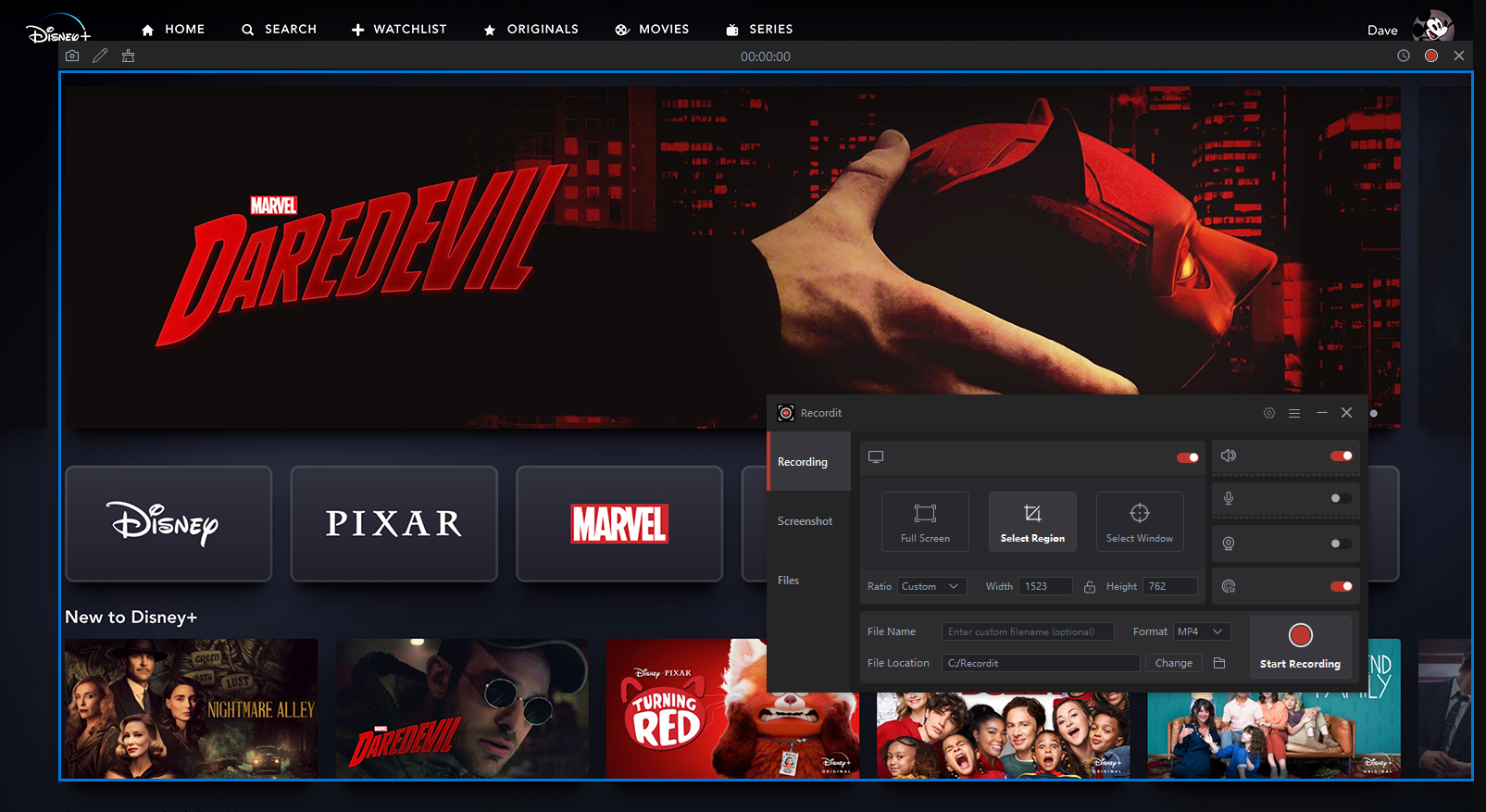
How to screen record Disney Plus 和 Recordit :
- 下载并安装 Swyshare Recordit 在您的计算机上。
- Open Disney Plus and navigate to the video you want to record.
- 发射 Recordit , select the area of the screen to capture and turn on system sound.
- Start recording and play the Disney Plus content.
- Stop recording when done, export the recorded Disney Plus video, and watch offline anytime.
4。结论
The Disney Plus black screen can be frustrating, but most causes are easy to fix with steps like checking your internet connection, updating the app, clearing cache, or adjusting display settings. For users who want a guaranteed way to enjoy Disney Plus content without interruptions, Swyshare Recordit provides a reliable solution to record shows for offline playback in high quality.
By combining troubleshooting methods with Swyshare Recordit , you can ensure uninterrupted access to your favorite Disney Plus movies and series while also building a personal library of recordings. Whether you’re dealing with black screens, poor internet, or device glitches, these solutions make sure your Disney Plus experience remains magical.