
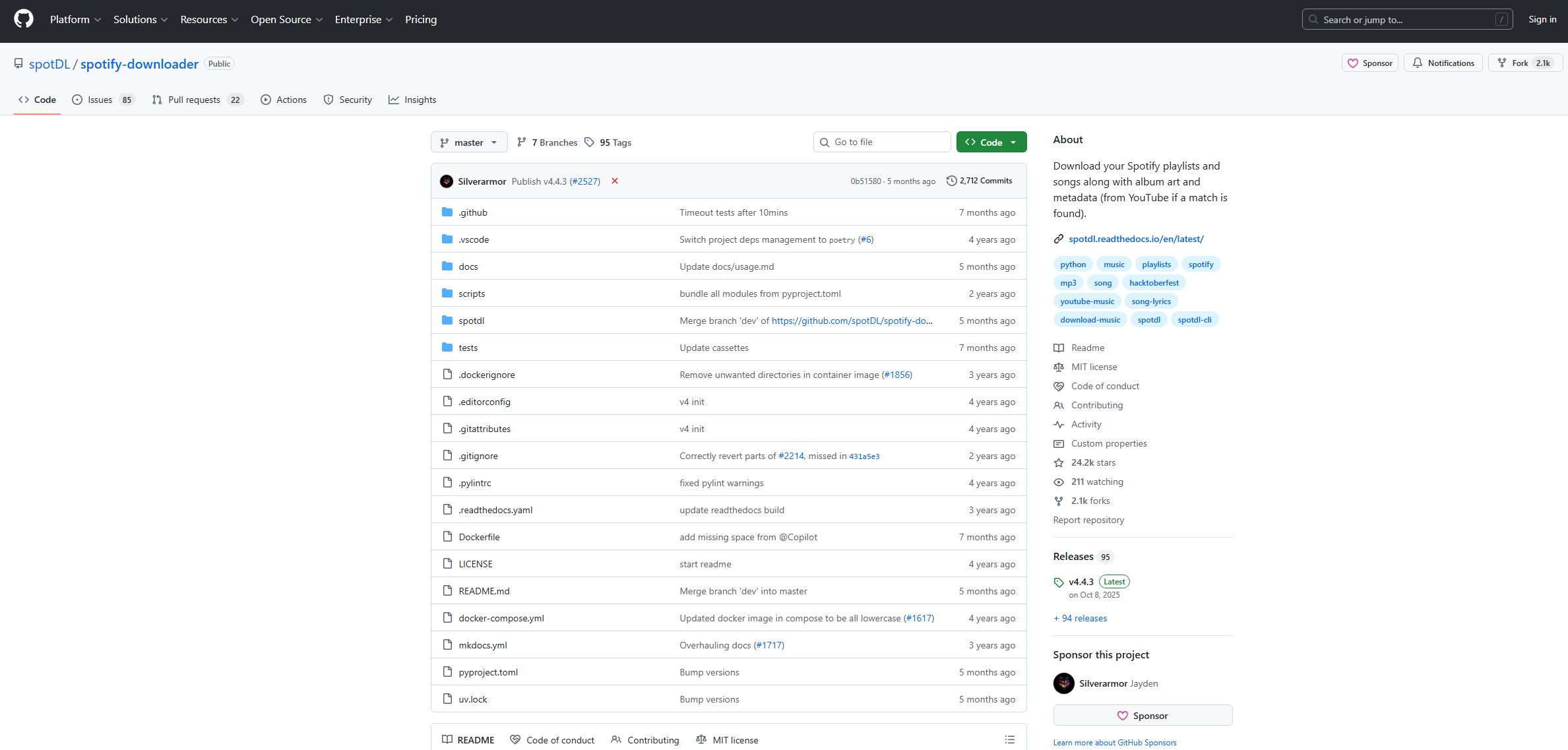
spotDL is a widely used tool for downloading music from Spotify, it allows users to convert Spotify tracks into MP3 files by locating the corresponding audio on YouTube and downloading it locally. Because it is open-source and relatively easy to use, many music enthusiasts rely on it to build offline libraries of their favorite songs.
However, like many command-line tools that rely on multiple services, spotDL does not always work smoothly. Users often encounter errors during downloads, and these problems can interrupt downloads and make the tool frustrating to use.
In this guide, we’ll explain what spotDL is, how to use it properly, and how to fix some of the most common errors.
1. What Is spotDL?
spotDL is a command-line program that allows users to download songs from Spotify. Instead of downloading music directly from Spotify’s servers, spotDL searches for the same track on YouTube and downloads the audio version.
Once the audio is downloaded, spotDL automatically:
- Converts the audio to MP3 or another format
- Adds metadata such as artist, album, and artwork
- Organizes the files into folders
Despite these advantages, spotDL depends heavily on YouTube search results and external APIs, which sometimes leads to errors.
2. How to Use spotDL?
Using spotDL typically involves installing it via Python or pip and then running commands in the terminal.
- Install spotDL using pip: pip install spotdl
- Open Spotify and copy the link to the track, album, or playlist you want to download. Example: https://open.spotify.com/track/xxxxxx
- Paste the link into your terminal: spotdl https://open.spotify.com/track/xxxxxx
spotDL will then:
- Identify the track information from Spotify
- Search YouTube for a matching audio source
- Download the audio
- Convert and tag the file automatically
You can also download entire playlists: spotdl https://open.spotify.com/playlist/xxxxxx
3. How to Resolve spotDL Error 500
One of the most common issues users encounter is spotDL Error 500 , which typically indicates a server or API issue.
Possible Causes
- Temporary server problems
- API request failure
- Outdated spotDL version
- Network connectivity issues
解决方案
3.1 Update spotDL
Many errors are caused by outdated versions. Update the tool: pip install –upgrade spotdl
3.2 Check Internet Connection
An unreliable internet connection may cause API requests to fail.
3.3 Restart the Command
Sometimes the error occurs temporarily. Simply rerunning the command may fix it.
3.4 Use a Different Track Link
Occasionally, a specific Spotify track may cause issues with API requests.
3.5 Clear Cache or Reinstall
If the error persists, reinstall spotDL completely.
4. How to Resolve spotDL “Too Many 404 Error Responses”
Another frequent issue is the “Too Many 404 Error Responses” error. This usually happens when spotDL fails to find a valid source for the track.
Why This Happens
- The YouTube video is unavailable
- The search result was removed
- The track title has changed
- The source link is blocked or region-restricted
Fixes to Try :
4.1 Update spotDL
Search algorithms improve with updates. pip install –upgrade spotdl
4.2 Use the
--search-query
选项
You can manually adjust the search query: spotdl –search-query “Artist – Song Title”
4.3 Try Another Mirror or Source
If YouTube does not provide a valid result, spotDL may fail repeatedly.
4.4 Download Individual Tracks Instead of Playlists
Large playlists sometimes trigger repeated 404 errors.
5. How to Resolve spotDL Failed to Convert?
Another common problem occurs during the conversion stage. spotDL downloads the audio successfully but fails when converting the file.
Possible Reasons :
- Missing FFmpeg installation
- Corrupted download file
- Incorrect output format settings
- Permission issues
How to Fix It
5.1 Install FFmpeg
spotDL relies on FFmpeg to convert audio files.
Download and install FFmpeg, then ensure it is added to your system PATH.
5.2 Check Output Format Settings
Try changing the format: spotdl –format mp3 or spotdl –format m4a
5.3 Delete Partial Files
Corrupted downloads may cause conversion failure. Delete the partially downloaded files and retry.
5.4 Run spotDL with Administrator Permissions
This can resolve permission-related issues when writing files.
6. Bonus: Record Spotify with Swyshare Recordit Instead of Using spotDL
If spotDL errors continue to appear, another practical option is recording Spotify audio directly.
Swyshare Recordit provides a much simpler solution. Instead of searching YouTube for audio sources, Recordit captures the sound directly from Spotify playback.
Recording can avoid many problems associated with spotDL, such as:
- API failures
- Missing YouTube sources
- Conversion errors
- Metadata mismatches
How to record Spotify with Recordit :
- 下载并安装 Swyshare Recordit Windows or Mac version on your computer.
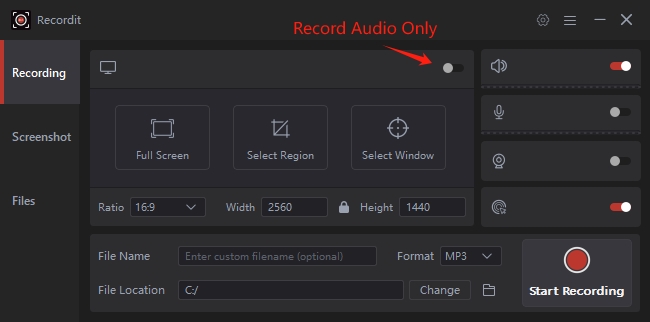
- 打开 Recordit and turn on the Audio Only mode, then set output quality, format and file location.
- Click Start Recording, and play the song, album, or playlist you want to capture.
- Once finished, stop recording and find the recorded Spotify music in the “Files” tab.
7. 结论
spotDL is a powerful tool for downloading Spotify music, offering features such as automatic metadata tagging and playlist downloads. However, because it relies on external services like YouTube, users may encounter issues such as Error 500, “Too Many 404 Error Responses”, or failed conversions.
Fortunately, many of these problems can be resolved by updating spotDL, installing FFmpeg, adjusting search queries, or retrying downloads.
If the errors continue and you want a simpler solution, recording Spotify audio can be a reliable alternative. Tools like Swyshare Recordit allow you to capture music directly during playback without dealing with command-line commands or source errors.
For users looking for a straightforward and dependable way to save Spotify audio, Recordit 这是一个值得尝试的绝佳替代方案。