In today’s digital landscape, screen recording software is a must-have tool for educators, content creators, gamers, business professionals, and anyone who needs to capture video of their computer screen. Whether it’s recording tutorials, webinars, gameplay, presentations, or online meetings, finding the right screen recorder can make your workflow smoother and your videos more professional.
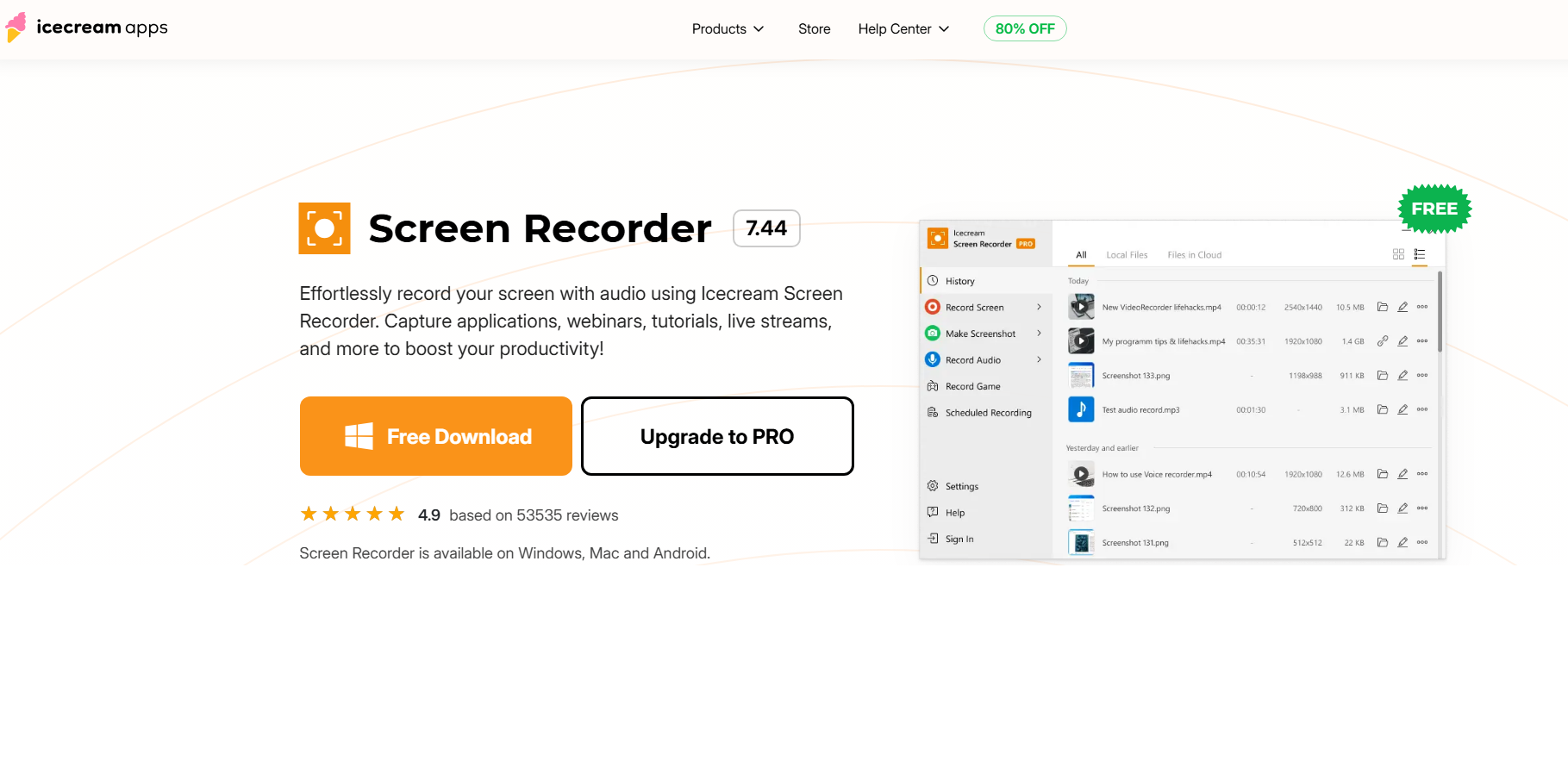
One of the popular options available is Icecream Screen Recorder, a lightweight and user-friendly screen capture tool from Icecream Apps. In this review, we’ll explore what Icecream Screen Recorder is, its main features, how to use it, its pricing plans, as well as compare it’s pros and cons.
1. What Is Icecream Screen Recorder?
Icecream Screen Recorder is a screen capturing software designed to help users record anything happening on their computer display. It supports capturing full screen, specific areas, and webcam overlays, and includes simple annotation features for marking up videos and screenshots. The software is available on Windows, and targets beginners or users who want a straightforward recording experience without complex settings.
Here’s a quick look at the key features that Icecream Screen Recorder offers:
- Flexible Recording Modes – Full screen, selected area, around cursor, and webcam capture.
- 录音 – Choose to record system audio, your microphone, or both sources together.
- Real-Time Annotation – Add arrows, text, highlights, and drawings during recording.
- 截图工具 – Capture screenshots in various modes.
- Basic Editing – Trim videos, mute audio, change playback speed.
- Instant Sharing – Quickly upload and share recordings.
These features make it a good choice for beginner to intermediate content creation and basic screen capture tasks.
2. How to Use Icecream Screen Recorder?
Using Icecream Screen Recorder is designed to be simple and approachable:
Step 1: Visit the official Icecream Screen Recorder website and download the installer, then follow the on-screen instructions to install.

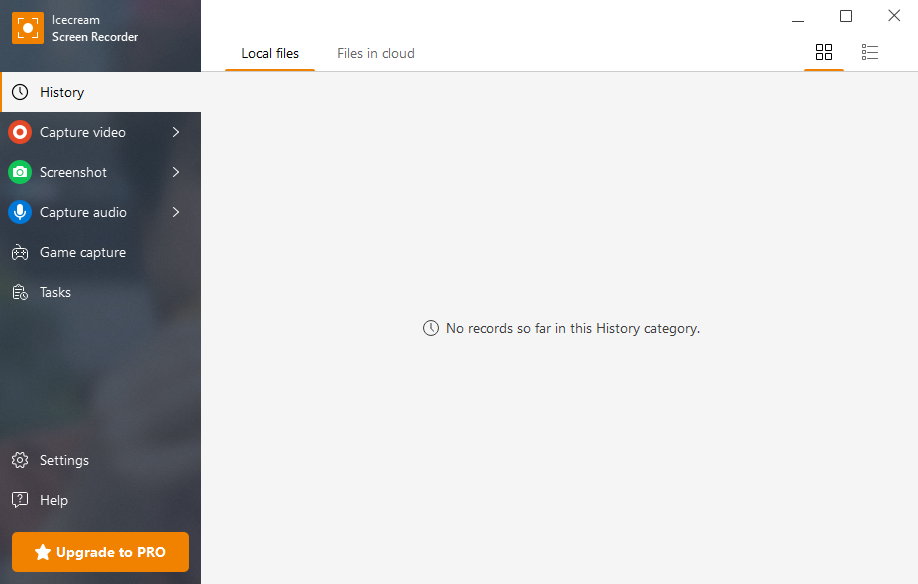
Step 2: Open Icecream Screen Recorde, you’ll see options like Capture Video, Screenshot, Capture audio, Game capture and Settings immediately on the main screen.

Step 3: Choose what to capture (full screen, custom rectangle, or around the cursor), configure audio settings (system audio/microphone audio), the press the Record button to begin.

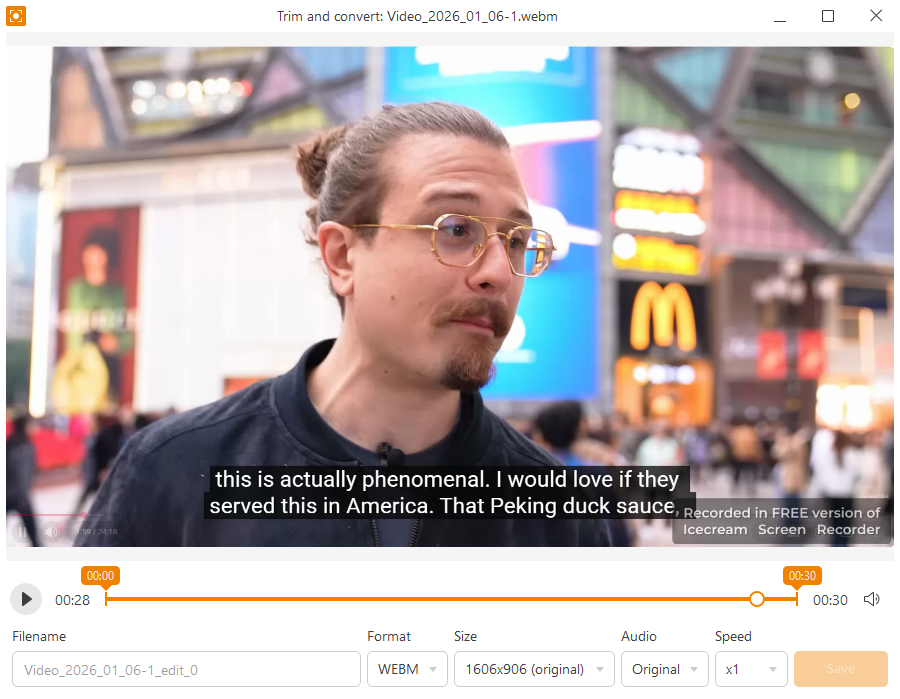
Step 4: After recording, you can trim the start/end, mute audio, adjust speed, and then export the video in your chosen format.

3. Icecream Screen Recorder Pricing
Icecream Screen Recorder offers different plans ranging from free to premium, depending on your needs:
| 计划 | 价格 | Key Details |
|---|---|---|
| Free Version | $0 | Basic screen recording with limitations (watermark, limited time). |
| 1-Year License | $29.95/year | No watermark or time limit, multiple formats, 10 GB cloud storage, scheduled recording, and commercial use. |
| Perpetual License | 59.95 美元 | One-time fee for lifetime use with the above features. |
| Video PRO Package | ~€78 | Includes a bundle of Icecream Apps video tools (screen recorder, converter, editor). |
The free version is suitable for very light usage, but the more useful capabilities — like no time limits and no watermark — require upgrading to a paid plan.
4. Pros and Cons of Icecream Screen Recorder
优点:
- Simple and intuitive for beginners.
- Capture full screen, region, webcam, or audio source.
- Built-in sharing features are convenient.
缺点:
- Watermarks and time caps restrict usefulness.
- No advanced video editing tools.
- Only WEBM in the free plan.
- Lacks advanced features for professional creators.
5. Best Alternative to Icecream Screen Recorder – Swyshare Recordit
If Icecream Screen Recorder’s limitations or higher Pro pricing hold you back, Swyshare Recordit offers a more flexible and cost-effective alternative.
While Icecream prioritizes simplicity, Swyshare Recordit pairs user-friendliness with a suite of powerful features, including:
- High-quality screen recording with flexible resolution settings.
- Advanced audio control to record high quality sound.
- Instant replay and schedule recording.
- Add drawings and mouse effects during recording.
- Built-in video editor to add logo/watermark, resize video and canvas.
- Export recordings in popular formats in seconds.
- Affordable monthly plans starting from only $9.95.
- Work well on both Mac and Windows.
如何使用 Swyshare Recordit :
- 下载 Swyshare Recordit for Windows or Mac and complete the installation.
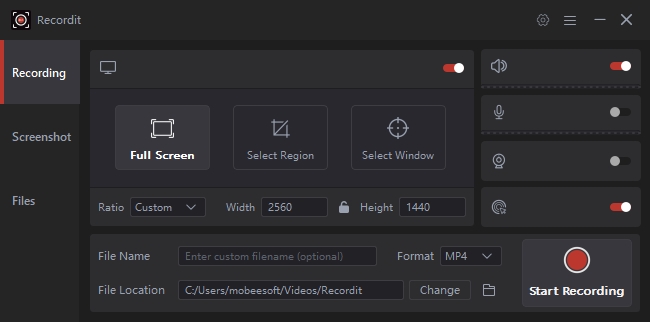
- 发射 Recordit and choose a recording mode (full screen, window, or custom area).
- Select audio sources (system sound, microphone, or both) and enable webcam if needed.
- Click Start Recording to start capturing your screen, pause or stop the recording at any time.
- Open the “Files” tab to preview the recording, edit if necessary.

5. 结论
Icecream Screen Recorder works well for casual users and beginners, offering easy screen capture, simple annotations, and basic editing. However, its limitations in recording time, output formats, and high Pro updrade pricing can hold back more serious creators.
Swyshare Recordit provides a stronger alternative with high-quality recordings, advanced audio control, real-time annotations, built-in editing, and cross-platform support. Starting at only $9.95/month, it’s the better choice for anyone who wants a reliable, professional, and versatile screen recording solution.