
Music can enhance livestreams, gaming videos, tutorials, and recordings by making content more engaging. Many creators add background music or display the current track while recording. OBS Studio is a popular free tool for streaming and recording, while Spotify is one of the world’s most widely used music streaming platforms.
Because of this, many users want to show Spotify in OBS—either by displaying the Spotify player, capturing the audio, or adding a “Now Playing” overlay with the song title and artist.
In this guide, we’ll explain how to have Spotify show up on OBS, explore the pros and cons of recording Spotify with OBS, and introduce a simpler alternative for recording Spotify music.
1. How to Have Spotify Show Up on OBS
There are several ways to make Spotify appear in OBS, depending on what you want to show during your recording or livestream. The most common approaches include capturing the Spotify window, capturing desktop audio, or displaying song information through an overlay.
1.1 Capture the Spotify Window in OBS
If you want viewers to see the Spotify application on your screen, you can capture the Spotify window directly.
脚步:
- Launch Spotify on your PC or Mac and play any song.
- Launch OBS Studio > In the 来源 section, click the “+” 按钮。
- 选择 窗口捕获 > Create a new source and give it a name, such as Spotify Window 。
- In the window selection menu, choose the Spotify application, then click 好的 to add it.
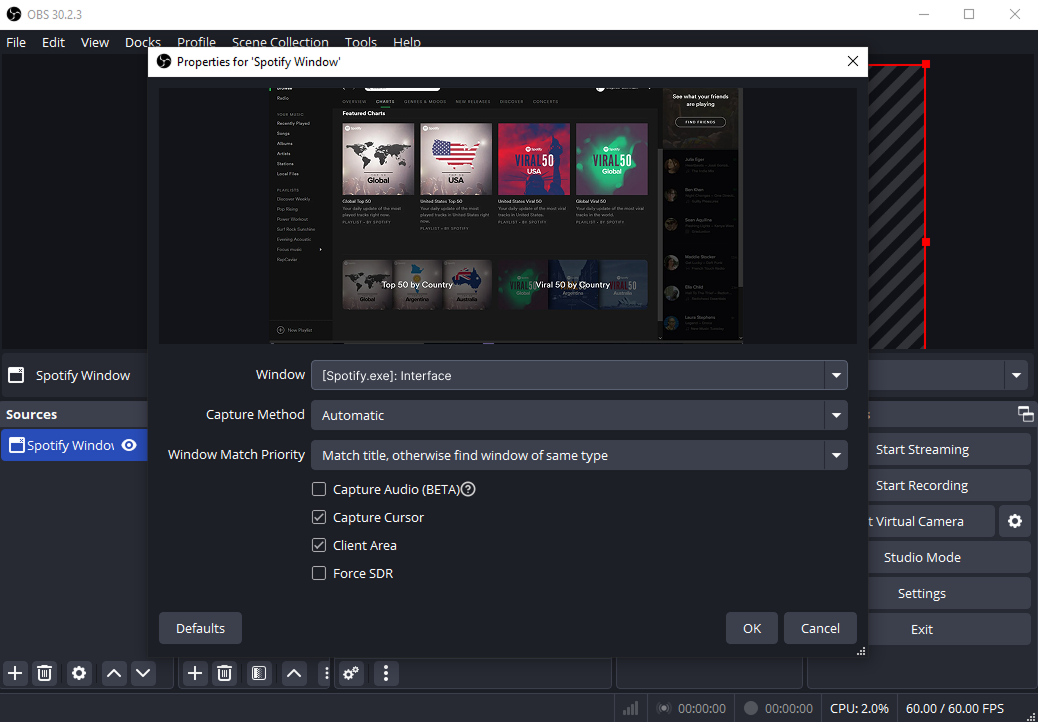
After completing these steps, the Spotify player will appear in your OBS scene. You can resize or reposition the window to fit your layout.
This method is useful for music-focused streams or tutorials where viewers may want to see the music interface or playlist being played.
1.2 Capture Spotify Audio in OBS
In many cases, creators only want to capture the music audio rather than display the entire Spotify window.
脚步:
- Open Spotify and start playing music.
- Open OBS Studio > In the 来源 面板,点击 + > 选择 Audio Output Capture 。
- Choose your computer’s audio device (such as speakers or headphones), and click 好的 。
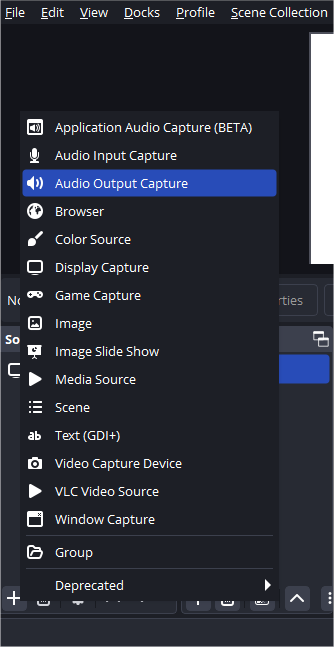
OBS will now capture the sound coming from your computer, including Spotify audio. This allows the music to be included in your recording or livestream.
1.3 Display “Now Playing” Information
Some streamers prefer showing only the song title and artist instead of the full Spotify interface. This creates a cleaner and more professional layout.
To do this, you can use a third-party tool that pulls track information from Spotify and updates a text file automatically. You can then display that text file inside OBS.
Basic steps:
- Install a Spotify “Now Playing” tool that generates a track information file.
- In OBS, click Sources → + → Text (GDI+) 。
- 使能够 Read from file 。
- Select the file containing the song information.
- Position the text overlay in your scene.
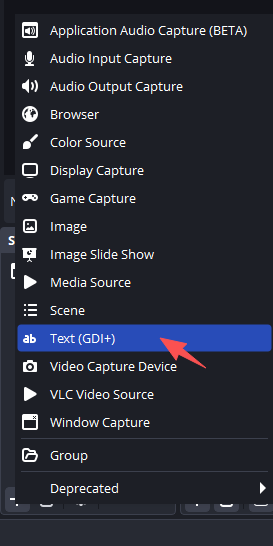
Whenever a new song plays on Spotify, the overlay will update automatically with the new track name and artist.
1.4 Use Display Capture
Another simple method is to capture your entire screen.
脚步:
- In OBS, click Sources → + → 选择 显示捕获 。
- Choose the monitor that shows your Spotify player and click 好的 。
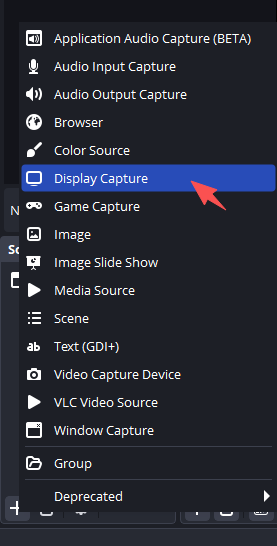
This will record everything on your screen, including Spotify and any other open applications.
While this method works well, it may also capture unwanted content, so it’s usually better to use window capture if you only want Spotify.
2. Pros and Cons of Using OBS to Record Spotify
Using OBS to record Spotify music or display it during streams offers several benefits, but it also comes with a few limitations.
优点 :
- 免费且开源 – OBS Studio is completely free to download and use.
- Flexible recording options – You can capture Spotify audio, the app window, or your entire screen.
- Great for streaming – Works well for livestreams where you want Spotify music in the background.
- Customizable scenes and overlays – Allows you to add “Now Playing” text, webcam, and other elements.
缺点
- Complex setup for beginners – Configuring audio sources and scenes can take time.
- Limited audio separation – Spotify audio may mix with other system sounds.
- Higher system resource usage – OBS can use significant CPU and GPU resources while recording.
- Not optimized for music recording – OBS is mainly designed for streaming and screen recording, not specifically for recording Spotify tracks.
3. Try the Simple but Powerful Alternative to OBS to Record Spotify
If you’re mainly looking to record Spotify music or capture your screen without dealing with complex configurations, a more straightforward option is Swyshare Recordit 。
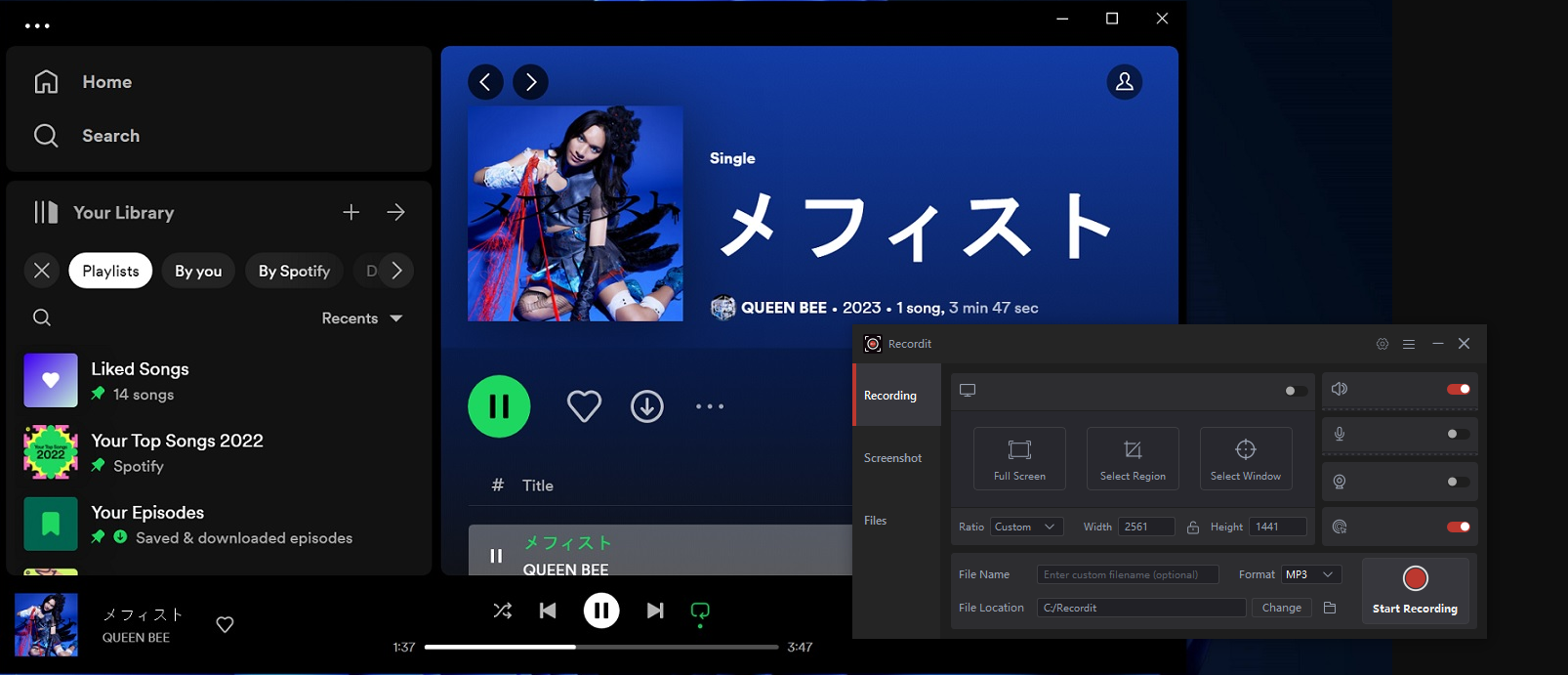
Swyshare Recordit is an easy-to-use screen and audio recording tool that allows users to capture Spotify playback with minimal setup. Unlike OBS, which requires multiple sources and settings, Recordit focuses on simplicity while still delivering high-quality recordings.
主要特点 Swyshare Recordit to Record Spotify:
- Multiple recording modes – Record the full screen, a selected area, or the Spotify window.
- System audio capture – Record Spotify music directly from your computer’s system sound.
- Microphone recording – Add voice commentary while recording Spotify playback.
- 高质量输出 – Save recordings in HD video or clear audio formats.
- Flexible export formats – Export recordings as MP4, MP3, and other common formats.
- 网络摄像头叠加层 – Add a webcam video for tutorials or reaction content.
4。结论
Showing Spotify in OBS is a common goal for streamers and content creators who want to include music in their broadcasts or recordings. With tools like window capture, audio output capture, text overlays, and display capture, it’s relatively easy to make Spotify appear in an OBS scene.
However, while OBS Studio offers powerful features for streaming and video production, it can be complex for users who simply want to record music from Spotify.
For a simpler workflow, Swyshare Recordit provides a practical alternative. Its straightforward interface, one-click recording, and flexible screen capture options make it a convenient tool for recording Spotify playback without the technical complexity of OBS.
If you’re looking for an easy and efficient way to capture Spotify music or screen activity, Swyshare Recordit is a highly recommended solution.