
In today’s content-driven world, streaming and recording high-quality videos is no longer limited to professional studios. With platforms like Twitch, YouTube, and Facebook Gaming, content creators, educators, and gamers are constantly looking for ways to deliver crisp, smooth video experiences. One of the most popular tools for this purpose is OBS, a free and open-source software that allows users to record and stream their screens with advanced customization options.
However, to achieve the best performance, OBS needs to be configured properly according to your hardware. For users with AMD GPUs, tweaking OBS settings can make a significant difference in both video quality and system performance. Without proper settings, recordings may lag, stream quality may drop, or the CPU might be overloaded, leading to a frustrating experience.
This article will guide you step by step on how to change OBS settings for AMD GPUs, and discuss tips for optimal performance.
1. How to Change OBS Settings for AMD GPU?
OBS offers a wide range of configuration options, and AMD users can leverage their GPU’s hardware encoder to reduce CPU usage and improve performance. Here’s how you can set up OBS specifically for AMD GPUs.
1.1 Update AMD Drivers
Before making any changes in OBS, it’s crucial to ensure your AMD drivers are up-to-date. AMD frequently releases updates that improve performance and add compatibility with the latest software.
- Open AMD Radeon Software or visit the AMD Drivers page.
- Identify your GPU model and update to the newest driver.
- Install the driver and restart your computer.
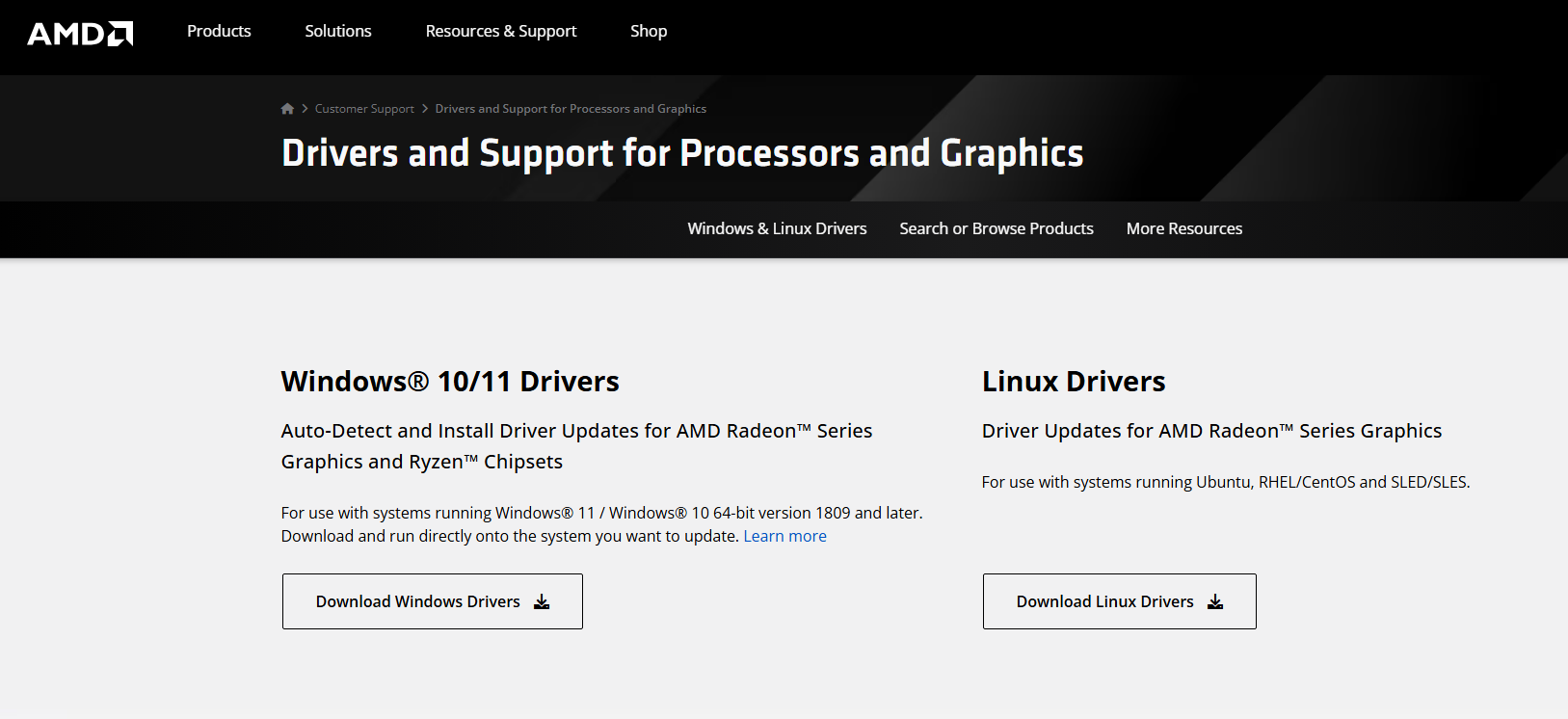
Keeping drivers updated ensures OBS can utilize AMD’s Video Coding Engine (VCE) / Advanced Media Framework (AMF) effectively.
1.2 Configure Video Settings in OBS
The first step within OBS is to optimize the video settings.
- 打开 奥布斯 → click 设置 → 视频 。
- 放 基本(画布)分辨率 to match your monitor’s resolution. For example, 1920×1080 if you are streaming in Full HD.
- 放 输出(缩放)分辨率 according to your target. If your internet speed or system performance is limited, you might choose 1280×720 for streaming.
- Choose a 降尺度滤波器 . The best option is Lanczos (36 samples) , which provides high-quality scaling.
- 设置 FPS(每秒帧数) to 30 or 60 depending on the smoothness you want and your GPU’s capabilities.
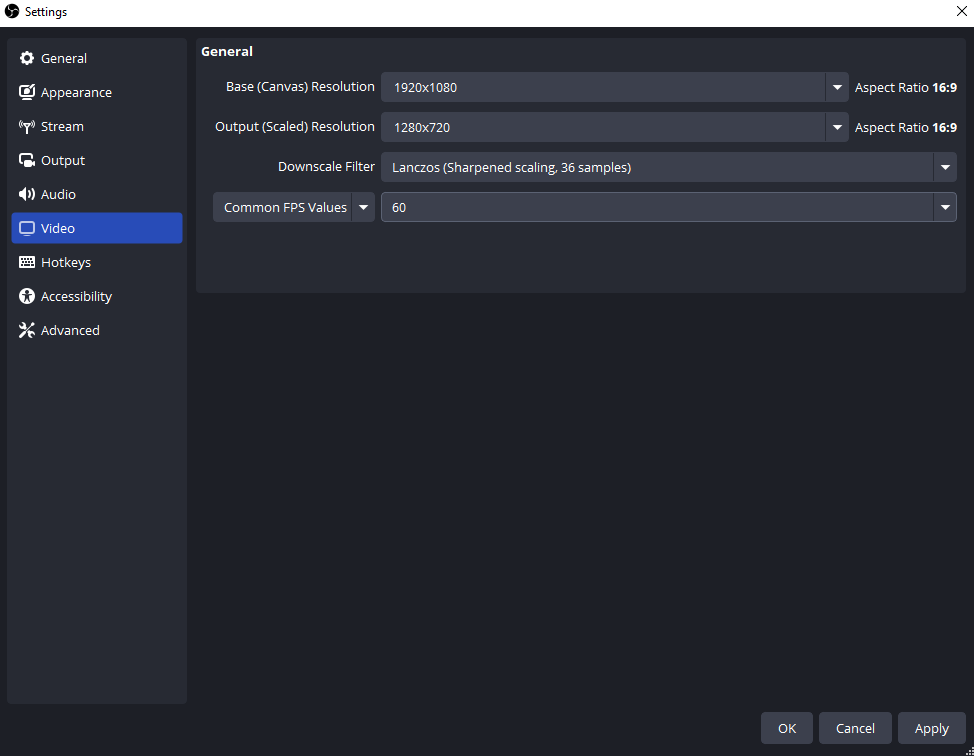
These settings ensure your stream or recording starts with a solid foundation before adjusting the encoder.
1.3 Set the Output to Use AMD GPU Encoding
The most important adjustment for AMD users is selecting the GPU encoder instead of the CPU-based x264.
- 转至 设置 → 输出 → Output Mode: Advanced 。
- 在下面
Streaming
和
记录
, set:
- 编码器:
H264 (AMD Advanced Media Framework)或者H.264 (AMD VCE). This enables your GPU to handle encoding, reducing CPU load. - Rate Control:
CBR(Constant Bitrate) for streaming,CQP或者VBRfor local recording. - 比特率: Depends on your resolution and FPS. For 1080p60, 6000–9000 kbps is standard. For 720p60, 3000–5000 kbps works.
- Keyframe Interval: Set to 2 seconds for streaming platforms.
- Preset:
Balanced或者Quality(Balanced reduces GPU strain, Quality prioritizes visuals). - Profile:
high。
- 编码器:
- For
记录
, choose
.mkv或者.mp4format to ensure compatibility and reduce corruption risk.
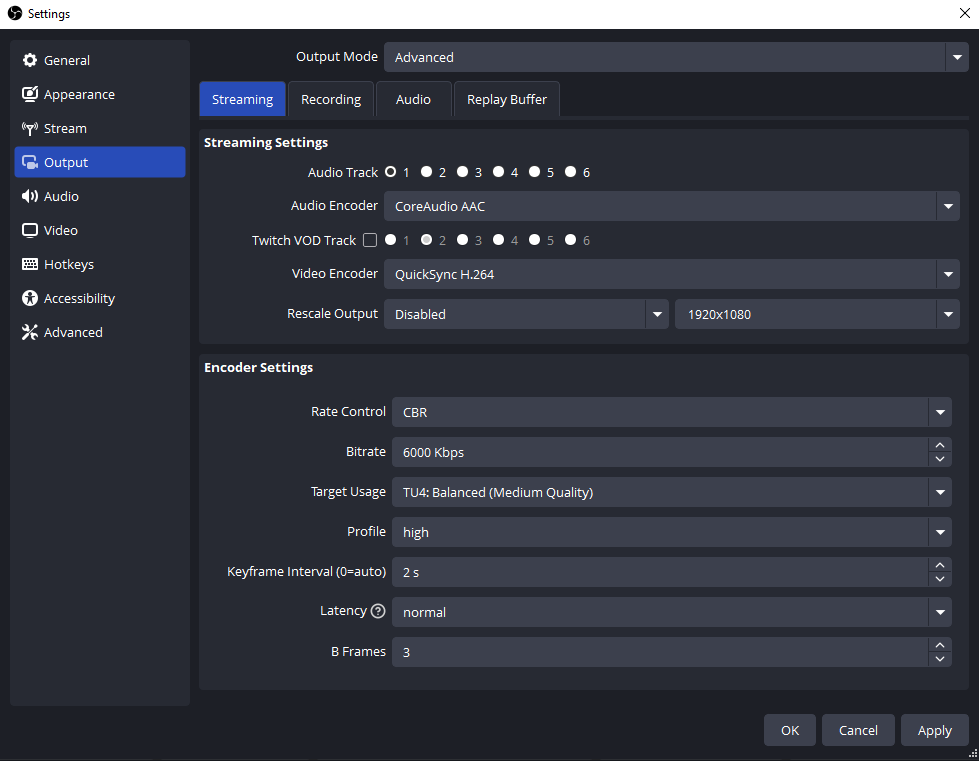
By enabling AMD VCE/AMF encoding, your system can deliver smooth streams and recordings without overloading the CPU, which is particularly useful for gaming while streaming.
1.4 Adjust Advanced Settings
For fine-tuned performance, tweak the 先进的 tab in OBS:
- Process Priority:
设置为
Above Normal或者Highto allocate more system resources to OBS. - Renderer:
Direct3D 11is standard for AMD GPUs. - 颜色格式:
NV12 - YUV Color Space:
709 - YUV Color Range:
Partial
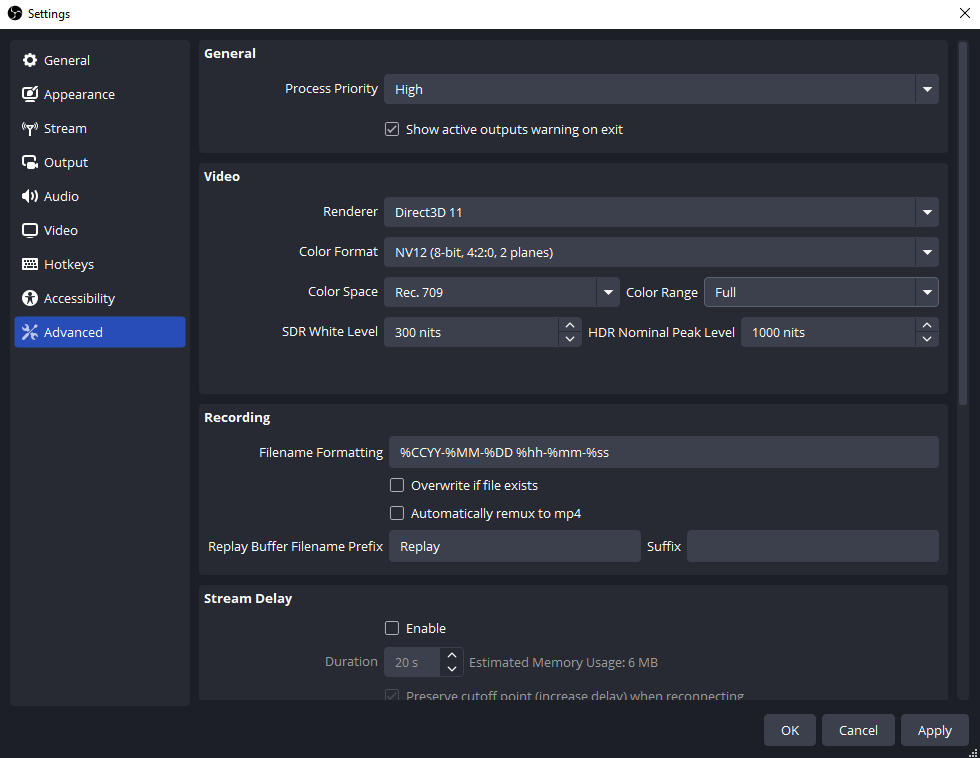
These settings help ensure video quality remains consistent and prevent color issues during streaming or recording.
1.5 Optimize AMD Radeon Settings
AMD’s Radeon Software also has options to improve OBS performance:
- 打开 AMD Radeon Software → 图形设置 。
- 禁用 Radeon Anti-Lag for streaming, as it can interfere with OBS.
- 关 Radeon Chill unless you need FPS limiting.
- 放
GPU Workload
到
Graphicsto prioritize gaming performance over compute tasks.
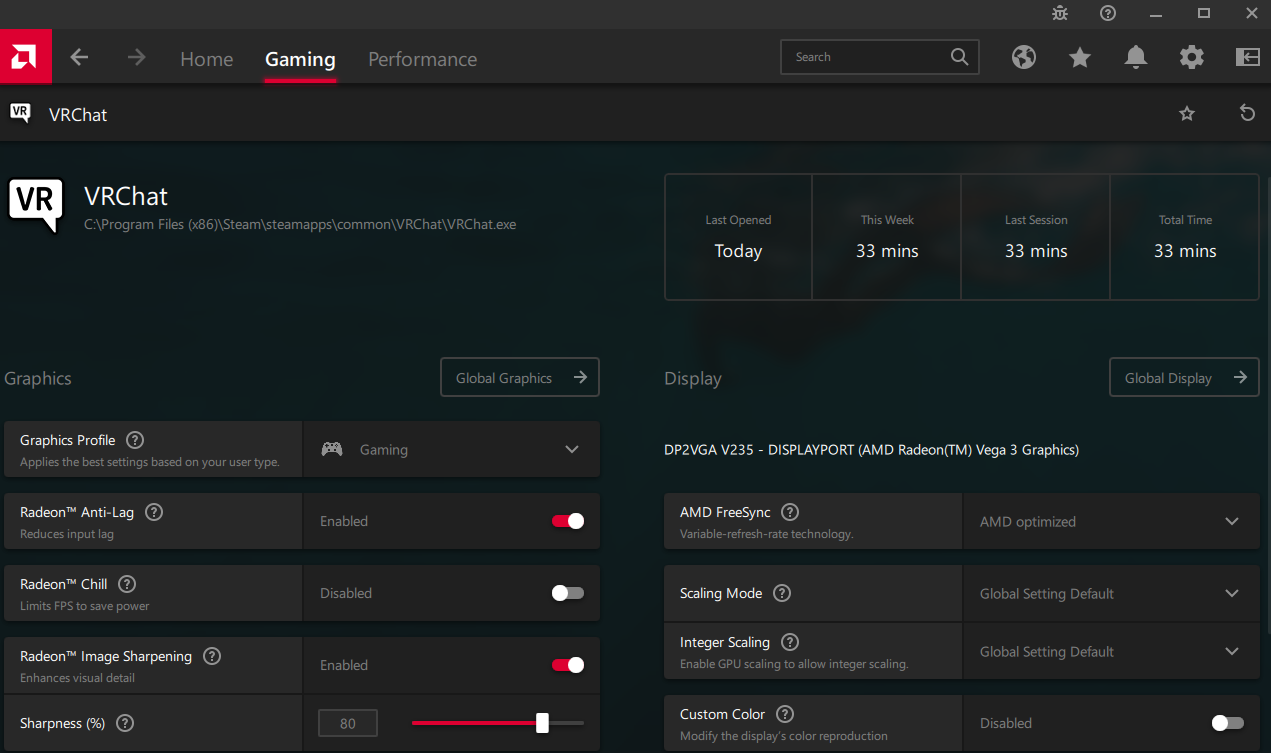
These tweaks reduce conflicts between your GPU and OBS, ensuring smoother video output.
1.6 Test and Refine
After making all the changes:
- Conduct a test recording or stream.
- Monitor CPU/GPU usage in OBS (bottom-right corner).
- Adjust FPS, bitrate, or encoder presets if your performance drops.
Testing is critical to find the perfect balance between video quality and system stability.
2. Try the Simple Alternative to OBS – Swyshare Recordit
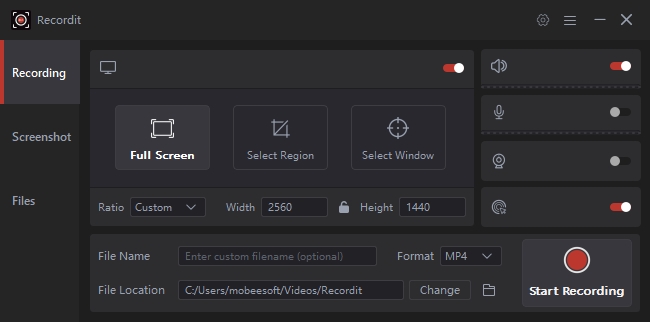
While OBS is powerful, its setup can be daunting for beginners or users who just want quick, high-quality recordings. For AMD users looking for simplicity and flexibility, Swyshare Recordit 是一个很好的选择。
Swyshare Recordit offers:
- Record full screen, custom areas, or specific application windows.
- Capture system audio, microphone audio, or both independently.
- Provide buffer replay and schedule recording.
- Qucik export recording in populat formats.
- Add logo or bg image, resize video or canvas without needing a separate editor.
- One-click recording setup – perfect for beginners or fast-paced tasks.
Unlike OBS, Swyshare Recordit requires minimal configuration. You don’t need to adjust bitrate, keyframes, or encoder settings manually. Simply select your capture area, choose audio sources, and hit to start recording. This is particularly helpful for educators, gamers, or content creators who want quick, reliable recording without technical overhead.
3. 结论
Optimizing OBS for AMD GPUs can dramatically improve streaming and recording performance, allowing you to deliver smooth, high-quality videos while reducing CPU strain. By updating drivers, configuring OBS video and output settings, and adjusting AMD Radeon options, you can fully leverage your GPU’s encoding capabilities. However, OBS’s vast customization can be overwhelming, especially for beginners.
For those who prefer a simpler, ready-to-go solution, Swyshare Recordit provides an excellent alternative. With its user-friendly interface, hardware-accelerated recording, and built-in editing tools, Recordit allows AMD users to focus on content creation rather than technical setup. Whether you’re streaming, recording gameplay, or creating tutorials, Swyshare Recordit delivers high-quality results without the learning curve of OBS.
In short, while OBS is ideal for advanced users who want full control over settings, Swyshare Recordit is the go-to solution for anyone seeking simplicity, speed, and reliable AMD GPU support.