
Live streaming on YouTube is no longer just about broadcasting video—it’s about real-time interaction . The live chat is where viewers react, ask questions, and engage directly with the streamer, making it a crucial part of any successful live stream. Displaying YouTube chat directly on your stream helps viewers feel included and encourages more interaction, especially for gameplay streams, tutorials, podcasts, and live discussions.
OBS Studio is one of the most popular free tools for streaming and recording, but many beginners struggle with one common question: how to show YouTube chat on stream in OBS. While OBS is powerful, its setup can feel technical at first, especially when dealing with browser sources, embeds, and layout adjustments.
In this article, we’ll walk you through how to show YouTube chat on stream using OBS step by step, and then introduce a much simpler alternative for users who want to record YouTube streams with chat easily.
1. How to Show YouTube Chat on Stream OBS?
Showing YouTube live chat on your OBS stream usually involves adding the chat as a 浏览器源 . Below are the most reliable methods streamers use.
Method 1: Add YouTube Chat as a Browser Source
This is the easiest and most widely used method.
脚步:
- Visit YouTube Studio → Content → Live , then start or schedule your live stream
- In the stream dashboard, locate Live chat, then click the three dots (⋮) → Pop-out chat . From the pop-out chat window, copy the URL from the address bar
- Open OBS Studio → Under 来源 , 点击 + → Browser
- Name it (e.g., YouTube Chat) → Paste the chat URL → Set size (recommended): Width: 400; Height: 800 → Click 好的 。
- The chat will now appear as a movable overlay in your OBS preview.
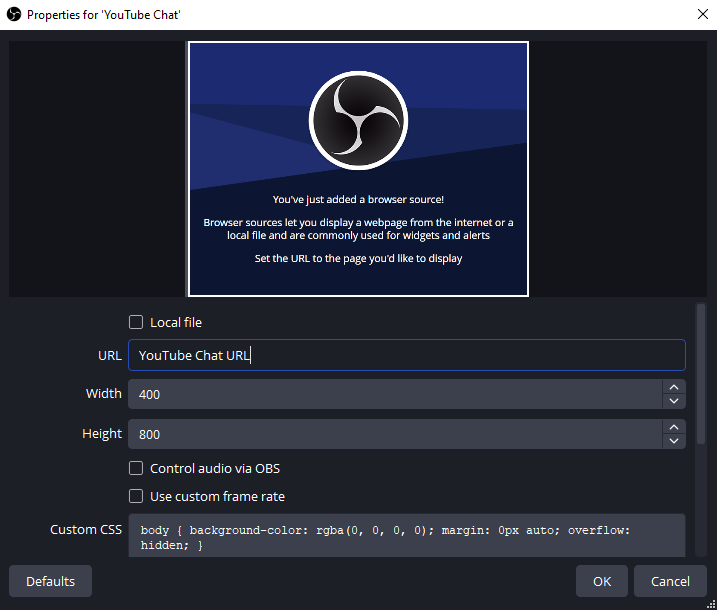
Method 2: Use YouTube Chat Embed Link
This method is useful if you want a cleaner layout or more control.
脚步:
- Open your YouTube live video page
- 点击 Share → Embed
- Copy the iframe code
- Extract the
srcURL from the iframe - Paste that URL into an OBS 浏览器源
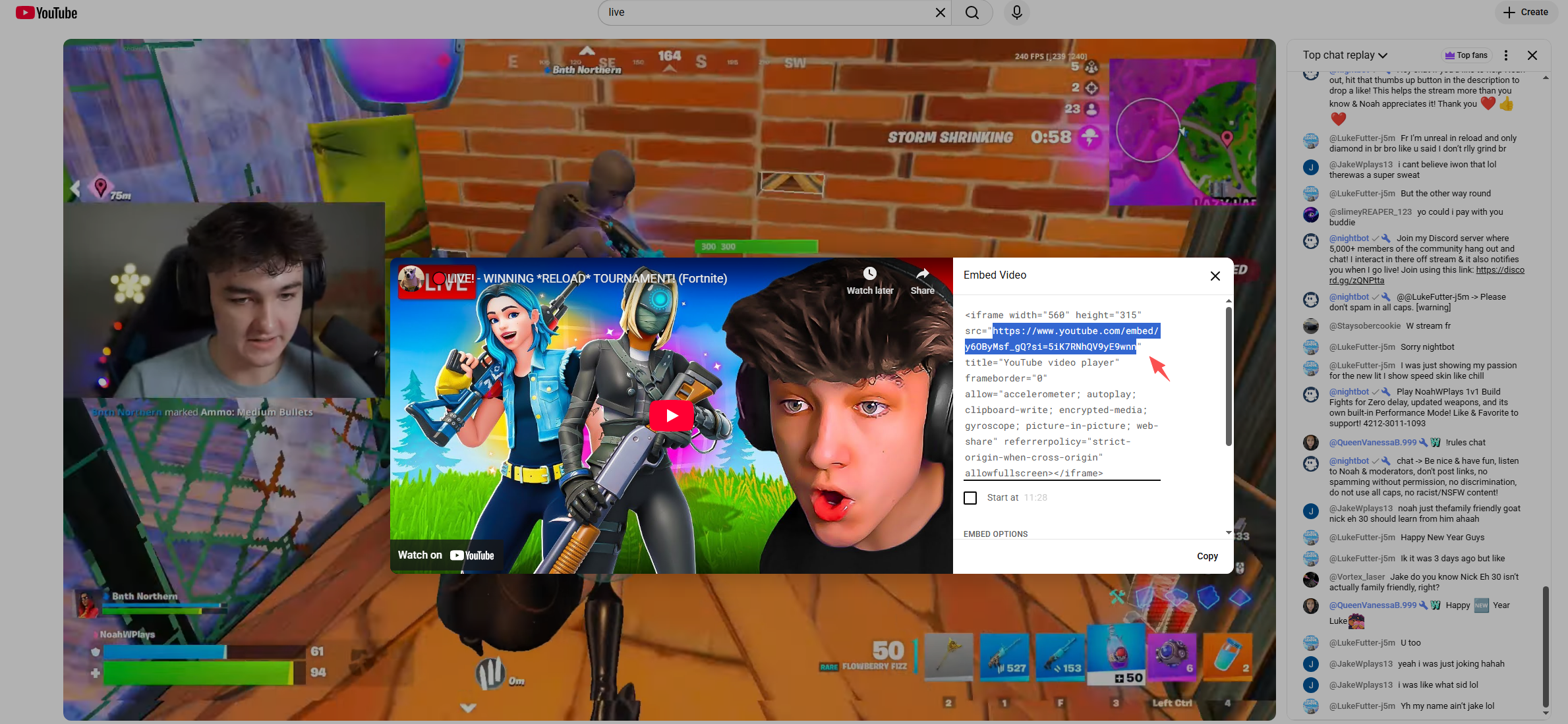
You can customize the look by adding parameters such as:
&dark_theme=1for dark mode
Method 3: Use Third-Party Chat Overlay Services
If you want animated messages, emojis, and visual effects, third-party tools work well.
热门选项包括:
- Streamlabs
- StreamElements
- Restream Chat
General Steps:
- Sign in to the overlay service
- Connect your YouTube account
- Enable the Chat Overlay Widget
- Copy the provided overlay URL
- Add it to OBS as a 浏览器源
These tools are ideal for streamers who want professional-looking chat animations without manual styling.
Recommended OBS Settings for Chat Overlay
To avoid common issues, adjust these Browser Source settings in OBS:
- Shutdown source when not visible : OFF
- Refresh browser when scene becomes active : ON
- 第一人称射击游戏 : 30
Optional custom CSS for transparent background:
body {
background-color: rgba(0, 0, 0, 0);
}
2. Common Problems and Fixes
Chat not showing up
- Make sure your stream is actually live
- Use the pop-out chat URL, not the video URL
- Refresh the browser source
Chat gets cut off
- Increase browser source width
- Check Transform → Reset Transform
Black or white background
- Enable custom CSS
- Use dark theme parameters in the URL
3. Try the Simple Alternative to OBS to Record YouTube with Chat – Swyshare Recordit
While OBS is powerful, it can feel overwhelming for users who simply want to record YouTube streams with chat visible, especially for tutorials, reactions, interviews, or archiving live events.
这里 Swyshare Recordit stands out as a simple and efficient alternative. Swyshare Recordit is an all-in-one screen recording solution designed for users who want to capture video, system audio, microphone input, and on-screen content—without complex setup. Unlike OBS, Recordit does not require scenes, sources, or browser embeds.
Key advantages of Recordit 包括:
- One-click recording – no scene configuration
- Capture YouTube video and live chat together
- 录制全屏、窗口或自定义区域
- System audio + microphone support
- Built-in screenshot and basic editing tools
- 适合初学者的界面
How to Record YouTube with Chat Using Recordit :
- 下载并安装 Swyshare Recordit on Windows or Mac
- Open the YouTube live stream or replay, and make sure the live chat is visible on the screen
- 发射 Recordit , select record area and turn on system sound (and microphone if needed)
- Click Start Recording and Recording will begin capturing the YouTube live with chat.
- Stop recording when finished and find the recorded video in the “Files” tab.
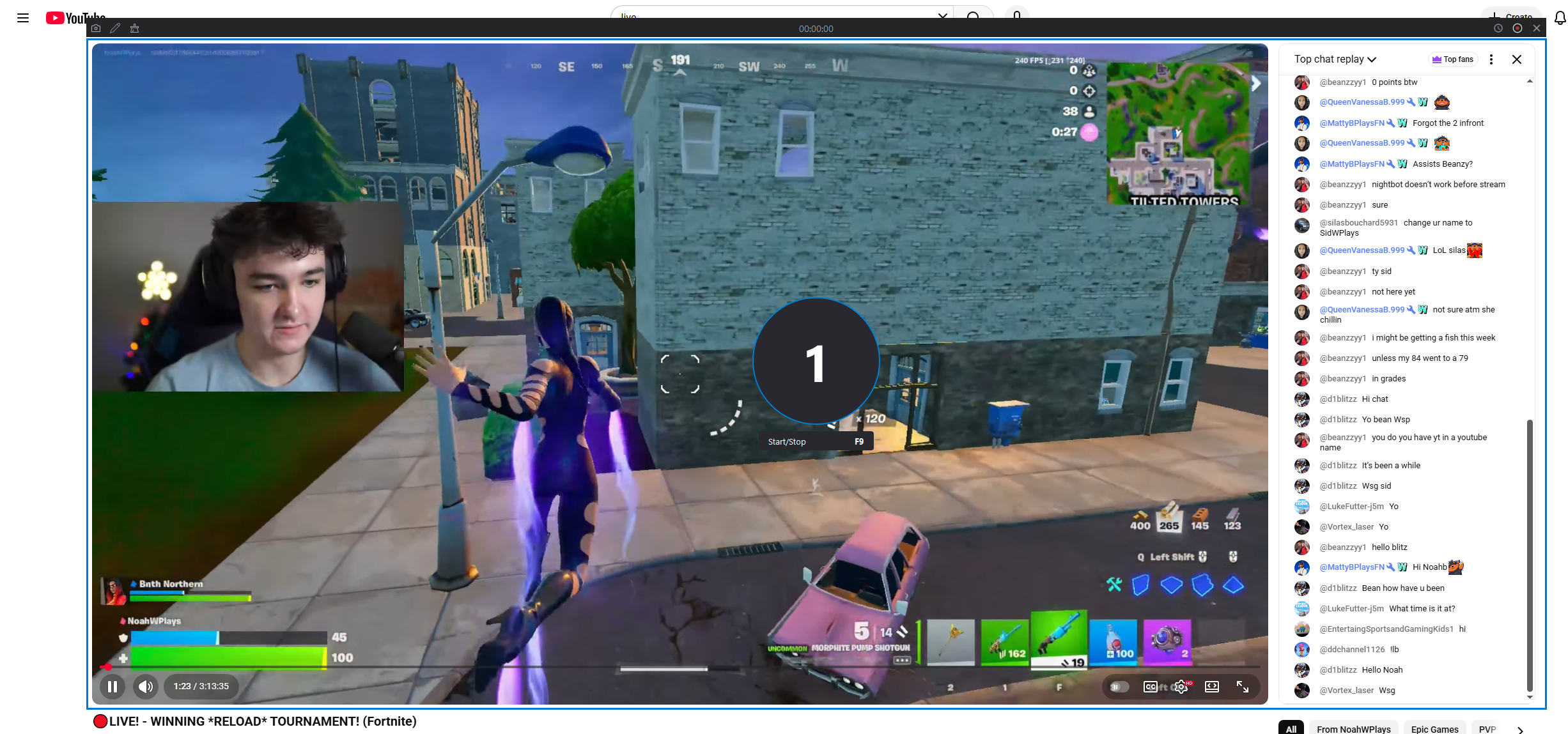
4. OBS vs Recordit : Which Should You Choose?
| 特征 | OBS工作室 | Swyshare Recordit |
|---|---|---|
| 学习曲线 | Steep | Very easy |
| Chat setup | 手动的 | Automatic (on-screen) |
| Live streaming | 是的 | 不 |
| Recording with chat | 复杂的 | One-click |
| Best for | Streamers | Creators, educators, reviewers |
5. 结论
Showing YouTube chat on your stream using OBS enhances viewer engagement and makes your content more interactive. By using OBS Browser Sources, embedded chat links, or third-party overlays, you can fully integrate live chat into your broadcast with professional results.
However, OBS is not always the best solution for everyone. If you mainly want to record YouTube videos or live streams with chat included, without dealing with technical setup, Swyshare Recordit is a smart and efficient alternative. Its simplicity, reliability, and screen-based recording approach make it ideal for creators who value speed and ease of use.
For live streaming → OBS
For recording YouTube with chat →
Swyshare
Recordit