Gyazo Reviews: How to Use It for Screenshots and Screen Recordings?

Screen capture tools now play a key role in how we work, learn, and share online every day. Whether you want to save online content, create tutorials, capture gameplay, report software bugs, or share information with coworkers, a reliable screenshot and screen recording tool can make everything easier. Among the many options available today, Gyazo stands out as one of the simplest and fastest solutions.

Gyazo is widely recommended because it focuses on speed and convenience. Instead of complicated menus and advanced editing panels, Gyazo allows users to capture screenshots or record videos in just a few clicks. It automatically uploads captures online and instantly creates shareable links, making it especially useful for remote teams, gamers, students, and content creators.

In this guide, we’ll explain what Gyazo is, how to use Gyazo for screenshots and screen recordings, as well as compare its pros and cons.

1. What Is Gyazo?

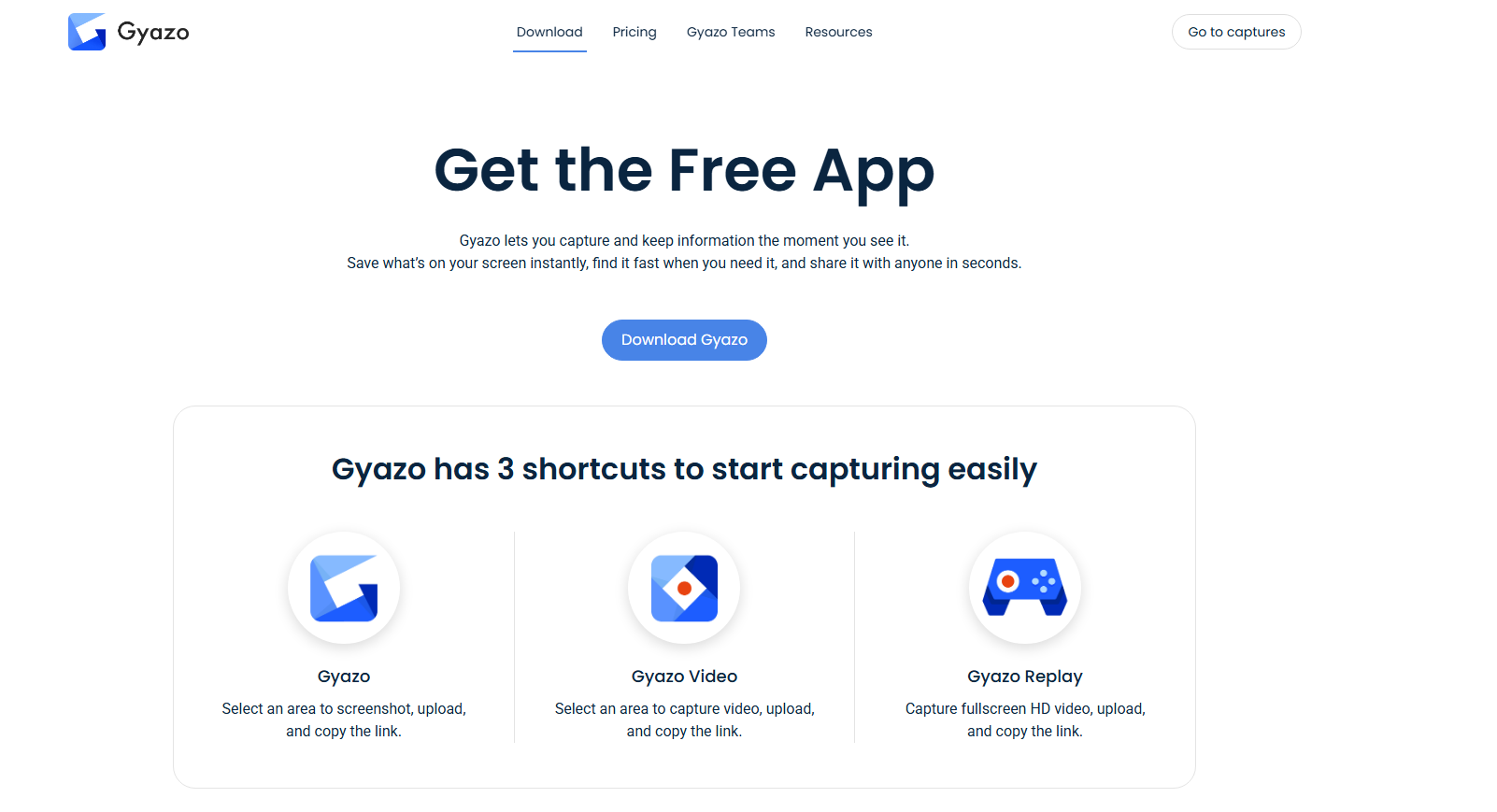
Gyazo is a lightweight screen capture platform available for Windows and macOS. It allows users to quickly capture screenshots, GIFs, and screen recordings, then upload them online for instant sharing.

Gyazo includes three separate apps:

  • Gyazo – Screenshot a selected area, upload, and share via link.
  • Gyazo Video – Record a selected area, upload, and share via link.
  • Gyazo Replay – Record fullscreen HD video, upload, and share via link.

This clean app design makes Gyazo highly user-friendly for various screen capture tasks.

2. How to Take Screenshots and Record Videos with Gyazo Easily?

Gyazo is designed to make screen capturing fast and beginner-friendly. Here’s how to use its apps.

2.1 Download and Install gyazo

Download Gyazo apps from the official website, then finish the installation.

download gyazo apps

2.2 How to Use Gyazo for Screenshots

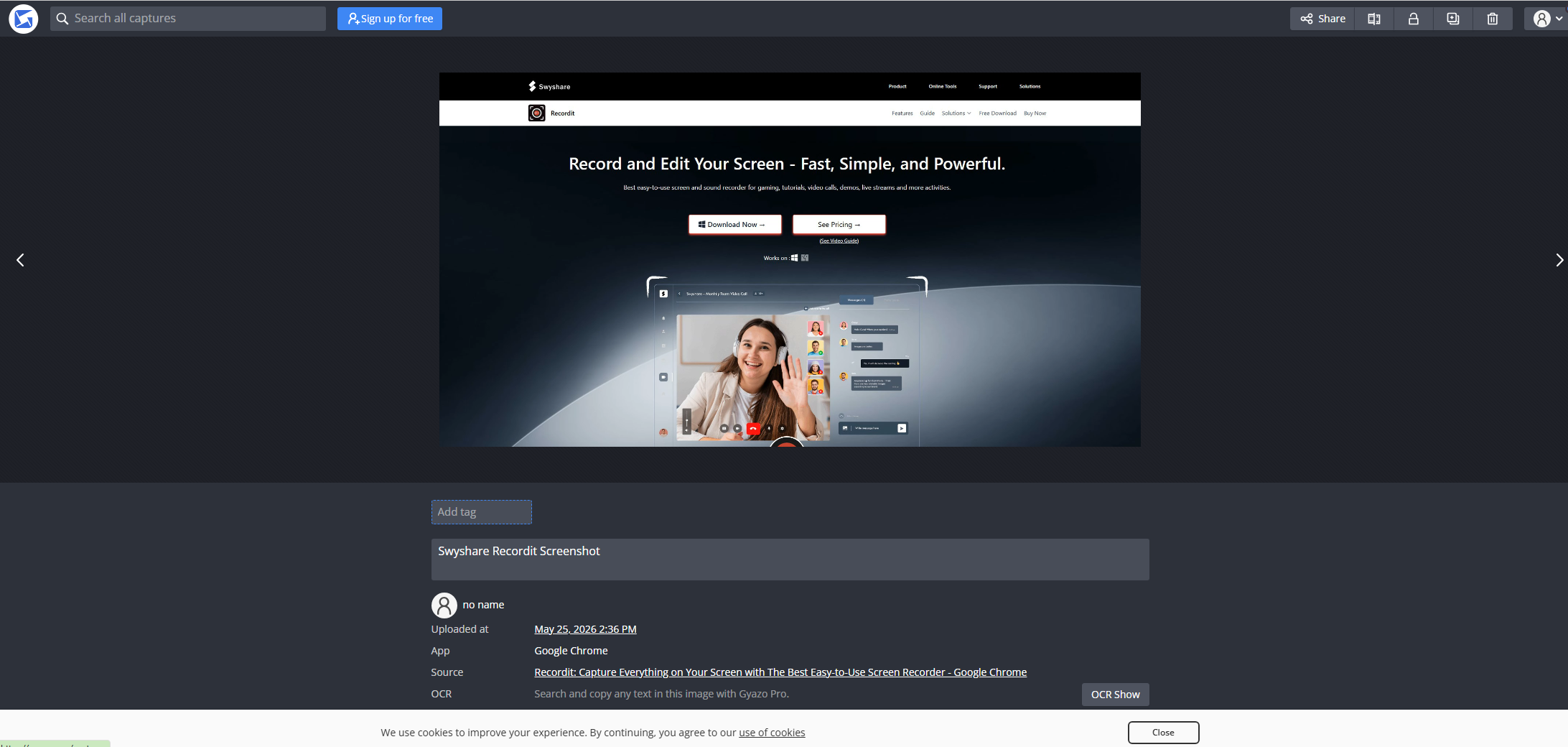
  • Launch the Gyazo app on your computer; Drag to select the screenshot area, then release the mouse button to capture the screenshot.
  • Gyazo automatically uploads the captured image, opens it in your browser, and lets you quickly copy the shareable link, download the image, or add annotations if needed.
gyazo screenshot

2.3 How to Use Gyazo Video for Screen Recording

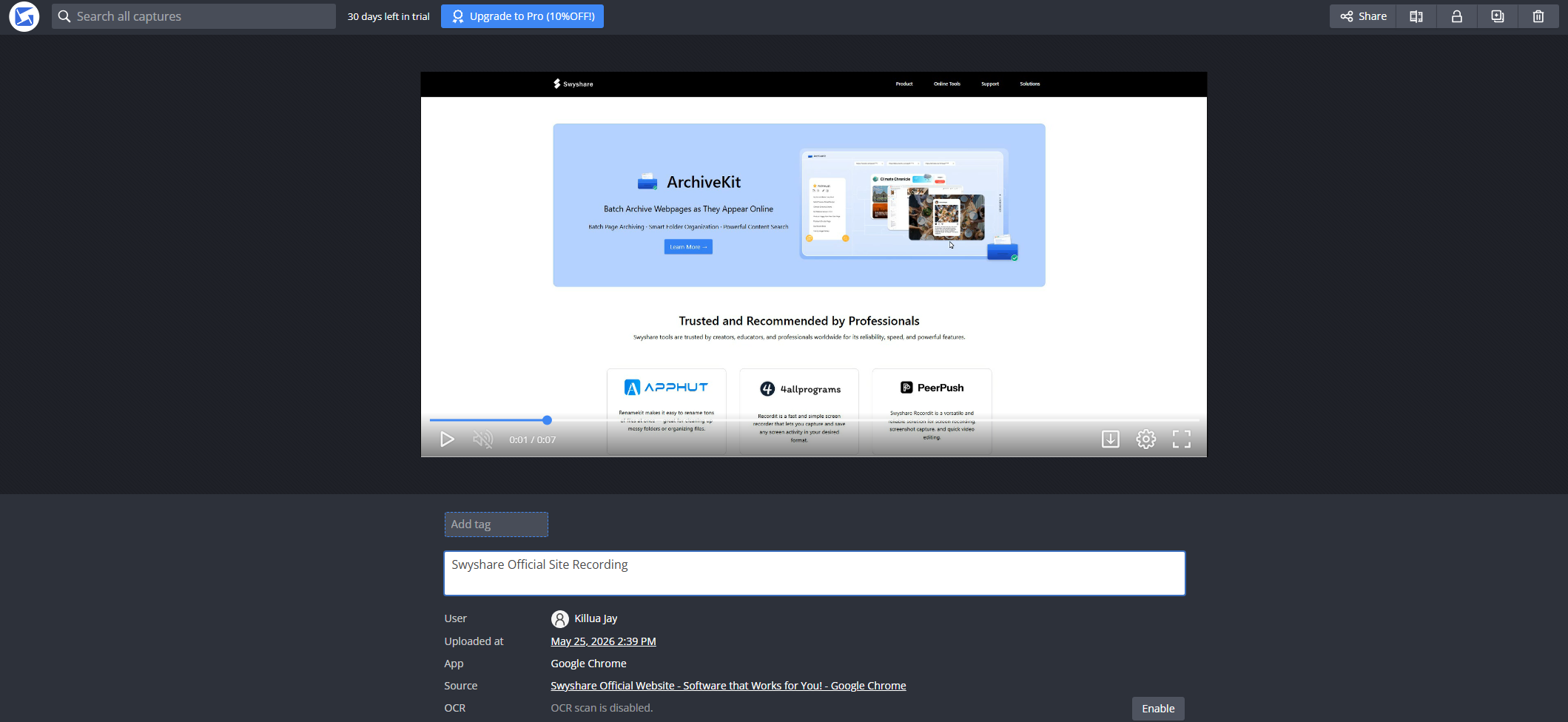
  • Open the Gyazo Video app on your computer, then click and drag to select the screen area you want to record.
  • Click the record button, then carry out the actions you want to capture on your screen.
  • When finished, Gyazo will upload the video automatically and generate a shareable link.
gyazo record screen

2.3 How to Record Fullscreen HD Video with Gyazo Replay

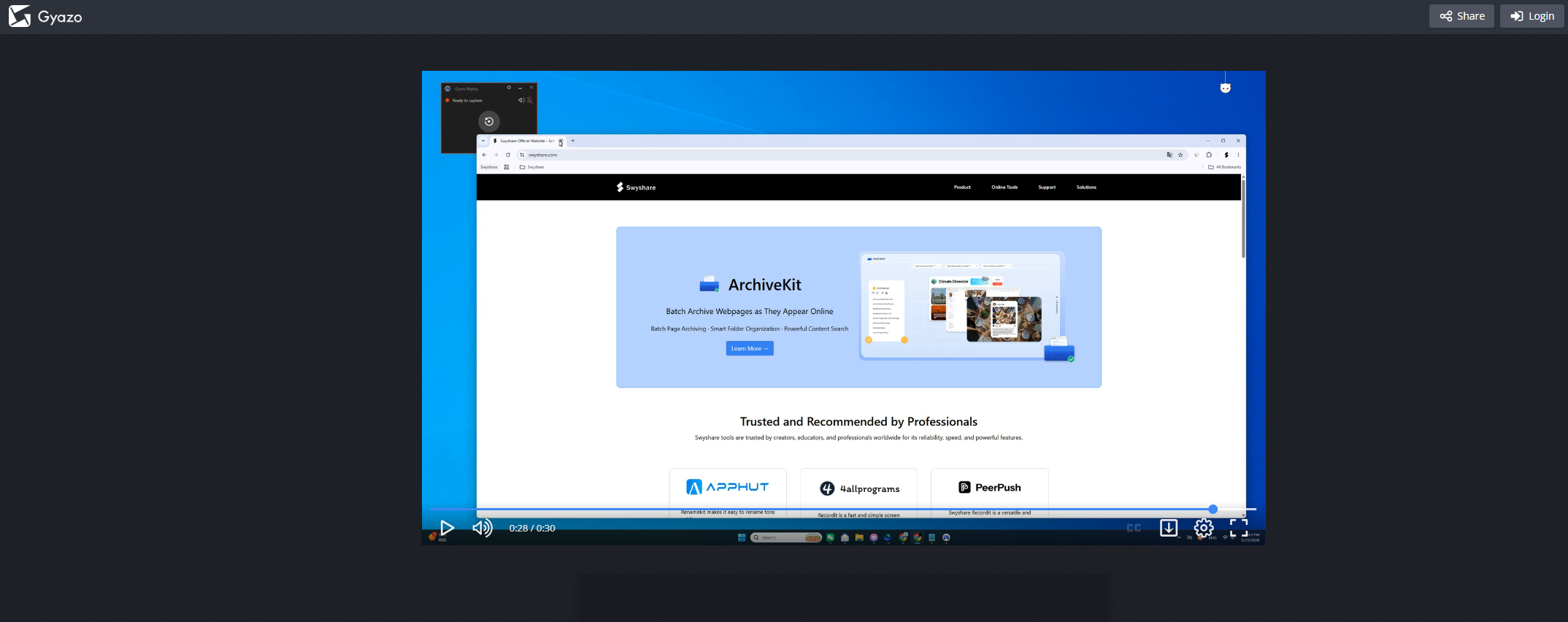
  • Launch Gyazo Replay on your computer.
  • Gyazo Replay will start capturing fullscreen HD video.
  • After recording, the video will be uploaded automatically.
gyazo record full screen

3. Pros and Cons of Gyazo

优点

  • Very Easy to Use : Gyazo’s clean interface makes it beginner-friendly.
  • Fast Sharing Workflow : Captures upload automatically and generate instant shareable links.
  • Lightweight Software : Gyazo runs smoothly without using excessive system resources.
  • Separate Apps for Different Tasks : The three-app structure keeps screenshot and recording workflows simple.
  • 跨平台支持 : Gyazo works on both Windows and macOS.

缺点

  • Limited Advanced Features : Gyazo focuses more on speed than professional recording tools.
  • Basic Editing Capabilities : Advanced annotation and video editing features are limited.
  • Cloud-Based Workflow May Not Suit Everyone : Some users prefer local-only saving instead of automatic uploads.
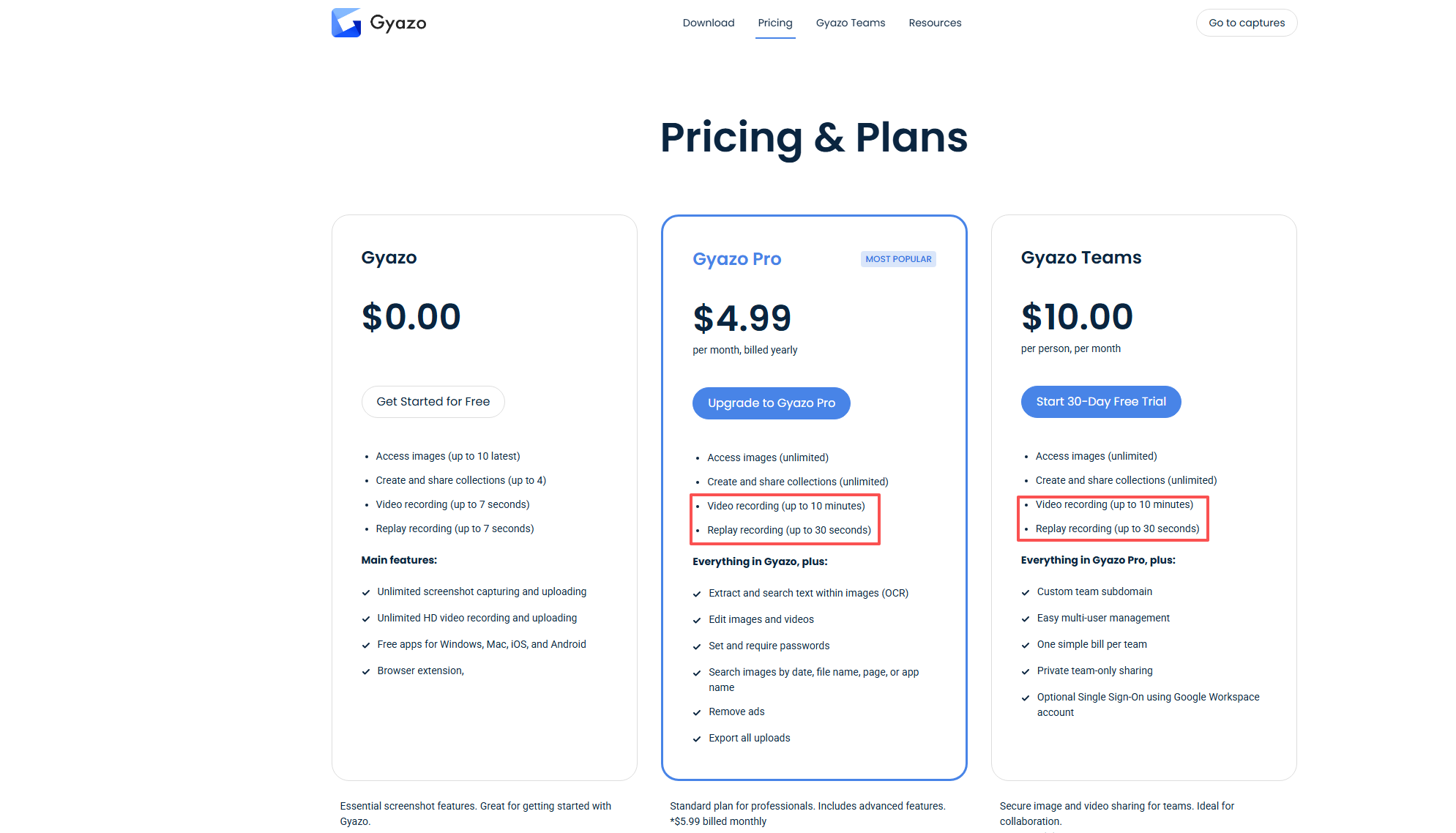
  • Subscription Restrictions : Limite video/replay recording even in subscription.
  • Not Ideal for Professional Video Production : Advanced creators may need more recording settings and export options.
gyazo pricing

4. Try a Simpler but More Powerful Alternative – Swyshare Recordit

While Gyazo is excellent for quick screenshots and fast sharing, users who need more powerful recording features may prefer Swyshare Recordit . Recordit combines screenshot capture and advanced screen recording into a cleaner and more flexible workflow.

为什么要选择 Recordit :

  • Record HD screen videos and capture screenshots in one app.
  • Capture fullscreen activity, selected regions, or specific application windows.
  • 录制系统声音、麦克风音频或两者同时录制。
  • Edit screen recordings during or after capture.
  • Support scheduled recording and instant replay features.
  • Quickly export recordings in MP4 and other popular video formats.

How to record screen and screenshot with Recordit :

  • Download and install appreciate version of Recordit on your computer, then launch it.
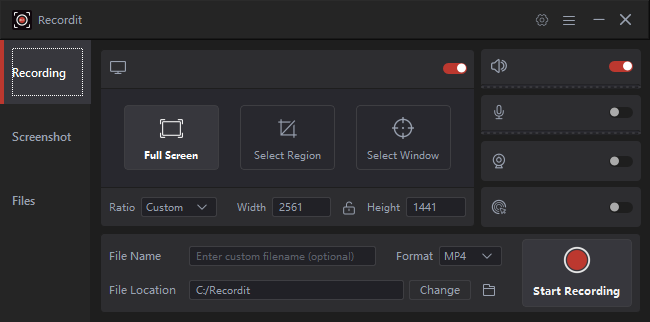
  • To record screen, open the “Recording” tab to choose a recording mode, enable audioand set other options, then click to start capturing your screen. When finished, open the “Files” tab to review or edit your recordings.
recordit win 界面
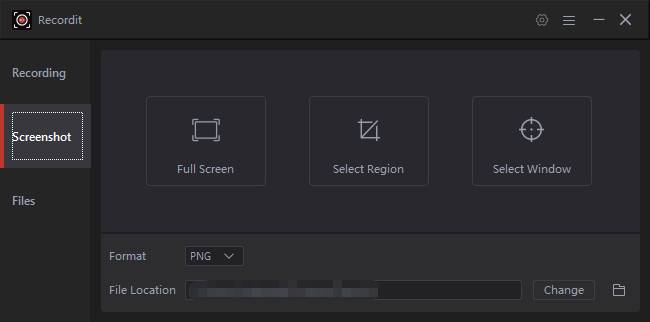
  • To take screenshots, open the “Screenshots” tab to select area, output fotmat and file location, the click to capture still images instantly.
recordit 截图功能

5. 结论

Gyazo is one of the easiest tools for capturing screenshots and recording screen activity. Its three dedicated apps — Gyazo, Gyazo Video, and Gyazo Replay — provide a simple workflow for screenshots, area video recording, and fullscreen HD recording.

The platform is ideal for users who want quick captures, instant uploads, and fast sharing without complicated settings.

However, users who need better recording quality, advanced audio support, flexible capture options, and improved local file management may find Swyshare Recordit to be a more complete solution. Swyshare Recordit delivers a streamlined yet more powerful screen recording experience, suitable for both everyday users and professional content creators.

发表评论

您的电子邮件地址不会被公开。 必需的地方已做标记 *